Takealot Store Settings Guide: Fix Whitelists, Low Stock Alerts, and Leadtime Pricing
Takealot Store Settings is one of the first places to review when Auto Pricing or inventory alerts feel wrong.
When sellers say a tool feels "off," the real problem is often not the tool itself. It is the defaults behind it.
That is especially true for Takealot Store Settings. If your whitelist is outdated, your auto pricing can react to the wrong sellers. If your low stock threshold is off, alerts either arrive too late or become noise. If your leadtime markup is poorly set, you may give away margin or overestimate how much shipping speed protects price.
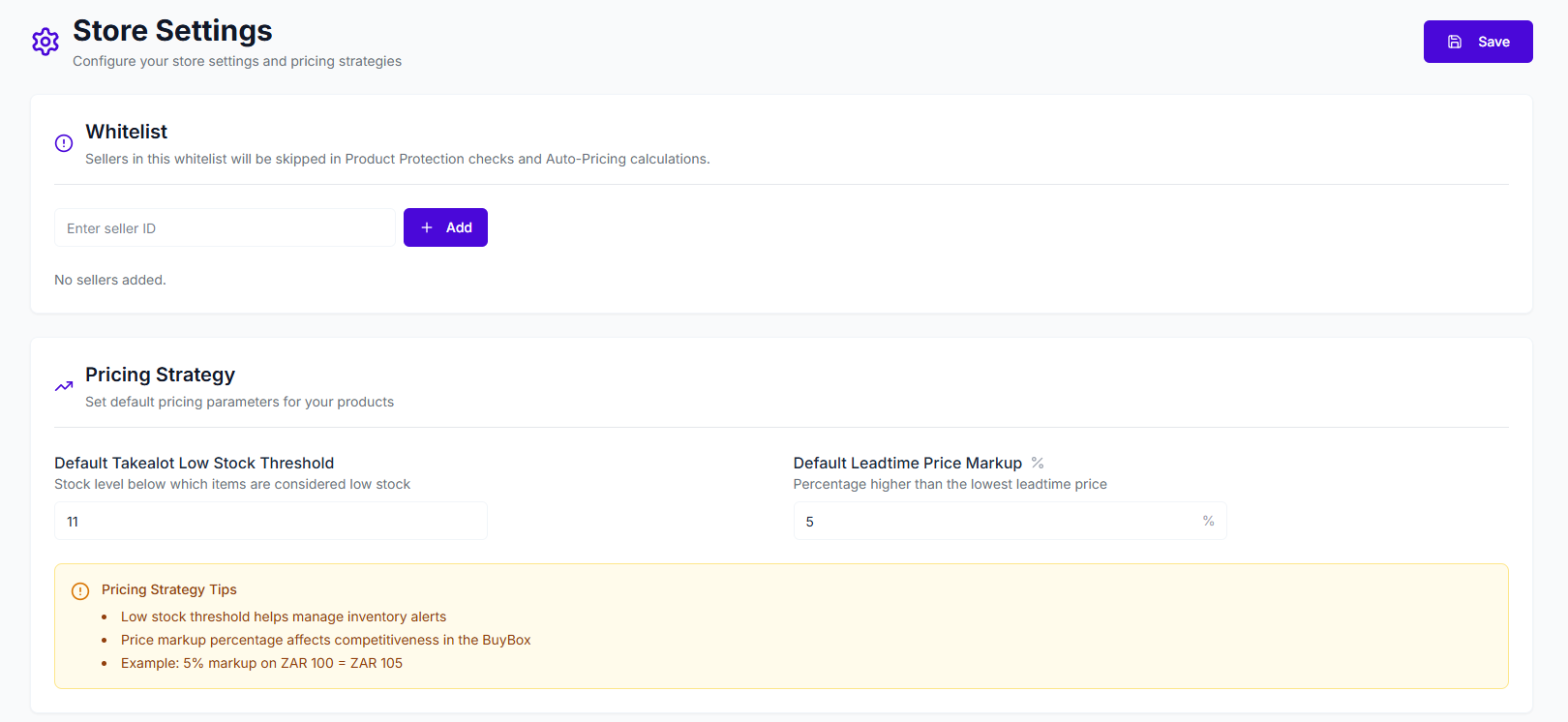
This is why Revenuealot Store Settings matters. It is the page that defines how a store interprets competition, inventory pressure, and pricing tolerance before the rest of the workflow kicks in.
If you want the feature walkthrough beside this article, start with the Store Settings docs. If you want to review a live store now, go straight to Store Settings.
Quick answer: which Takealot Store Settings matter first?
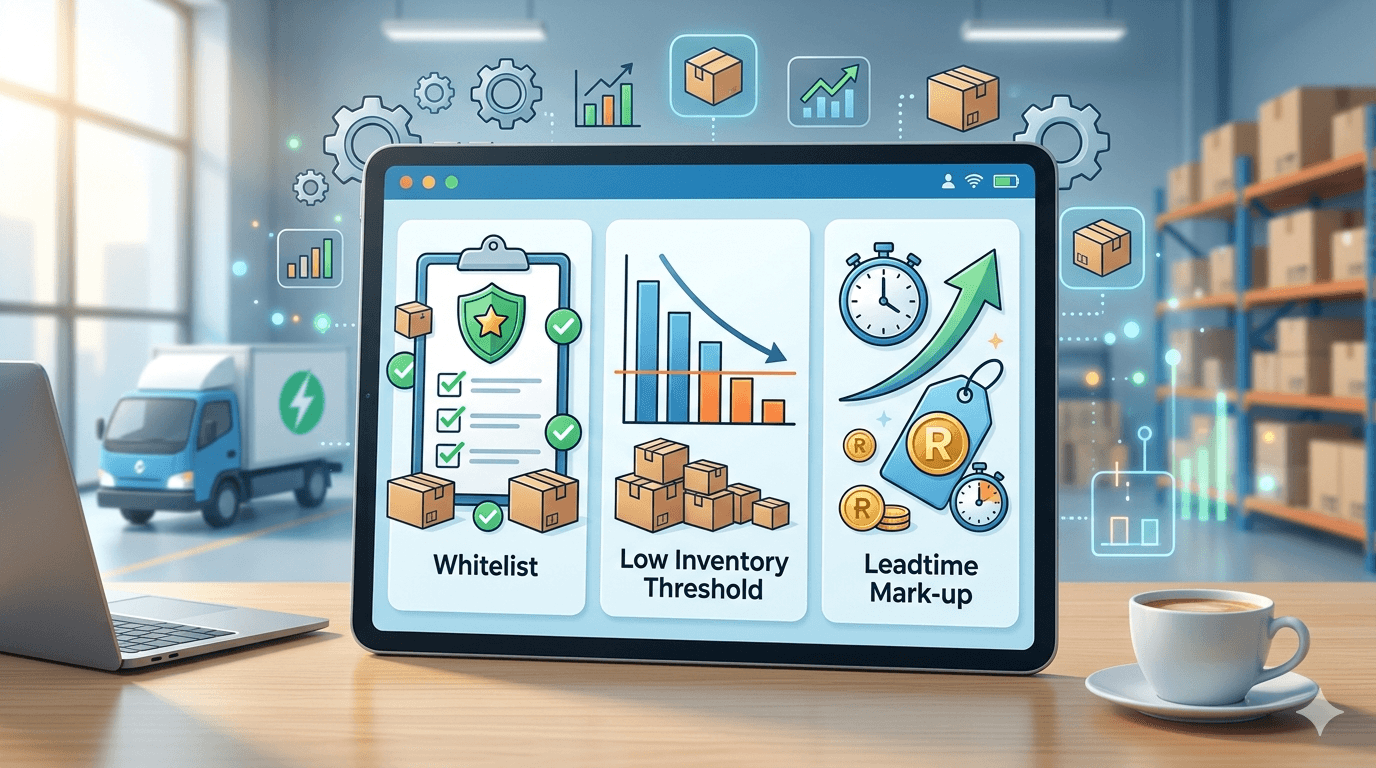
For most sellers, start with three defaults: whitelist seller IDs, low stock threshold, and leadtime markup.
Those settings control:
- which sellers Auto Pricing should ignore
- when stock pressure should feel urgent
- how much pricing room you keep against slower competitors
The three settings worth checking first
For most sellers, these are the defaults worth auditing before anything else:
If this feels wrong | Check this setting first | Why it matters |
|---|---|---|
Auto pricing keeps reacting to sellers you do not really compete with | Whitelist seller IDs | It decides who gets ignored in Product Protection and Auto Pricing logic |
Low stock warnings feel late or noisy | Default low stock threshold | It controls when stock pressure should actually feel urgent |
Pricing gets too aggressive or not aggressive enough versus slower sellers | Default leadtime price markup | It shapes how much pricing room you keep when leadtime competitors are in the market |
This is the fastest way to turn Store Settings into a practical diagnosis tool instead of a page you only open occasionally.
Fix the whitelist before you judge your pricing logic
The whitelist is often the first setting worth checking because it changes who counts as relevant competition.
When a seller ID is added there, that seller is skipped in Product Protection checks and Auto Pricing calculations.
That matters when:
- you operate more than one store and do not want them chasing each other
- you work with partner or distributor sellers you do not want treated as hostile competition
- certain sellers consistently distort the market picture for your own pricing decisions
If that seller list is wrong, pricing logic can look unstable even when the real problem is simply that the store is reacting to the wrong offers.
Low stock alerts only help when the urgency feels believable
The default low stock threshold sounds basic, but it changes how credible inventory alerts feel.
If it is too low:
- warnings arrive late
- teams react after stock pressure is already serious
- replenishment becomes more reactive than planned
If it is too high:
- too many products look risky
- the warning loses urgency
- people start ignoring the signal altogether
The point is not to find a universal number. It is to choose a threshold that matches how the store actually moves.
Leadtime markup is where pricing control and margin control meet
Many sellers underestimate default leadtime price markup because it sounds like a narrow pricing field.
In practice, it answers a more important question: how much higher are you willing to price when you compete with sellers who ship more slowly?
That matters because:
- in some categories, faster fulfillment gives you room to stay above the slowest offer
- in other categories, buyers are too price-sensitive for a generous markup to hold
If the value is too low, you may underprice unnecessarily. If it is too high, you may assume your fulfillment advantage matters more than buyers actually think it does.
Multi-store teams should not copy one setup across every store
If you manage more than one Takealot store, these defaults become even more important.
Different stores may need:
- different low stock sensitivity
- different tolerance for pricing pressure
- different whitelist logic depending on store relationships
That is why multi-store setup is not just about seeing several stores in one place. It is about making sure each store uses defaults that match how it operates.
A simple monthly Store Settings review
You do not need a complicated process. A short recurring review is usually enough:
- Check whether the whitelist still reflects current store and partner relationships.
- Review whether low stock alerts are arriving at a useful moment.
- Revisit leadtime markup against actual category price sensitivity.
- Save changes deliberately, because these defaults affect downstream decisions.
This kind of review is often what keeps auto pricing, product protection, and inventory alerts feeling consistent.
Where Store Settings connects to the rest of the workflow
Store Settings works best when read together with the tools it influences.
- If you are actively repricing, pair it with Auto Pricing.
- If you are reviewing stock pressure SKU by SKU, pair it with Product Analytics.
- If fulfillment speed matters to your pricing position, What Are In-Stock Items on Takealot is a useful companion.
FAQ
What does the whitelist change inside Revenuealot?
It removes those seller IDs from Product Protection checks and Auto Pricing calculations, so the store stops treating them as relevant competition.
How should I choose a low stock threshold?
Choose a level that gives your team time to act before stock pressure becomes expensive, without turning too many products into false alarms.
Is leadtime markup mainly a pricing setting or a margin setting?
It is both. It affects competitiveness, but it also protects margin when slower sellers are shaping the visible price anchor.
Final takeaway
If auto pricing or low stock alerts feel unreliable, Takealot Store Settings is one of the first places worth checking.
Revenuealot Store Settings makes those defaults visible instead of leaving them to drift. That usually leads to cleaner pricing behavior, more believable inventory alerts, and a better separation between real competitors and sellers you should ignore.
If you have not reviewed the page recently, open Store Settings and start with the whitelist, low stock threshold, and leadtime markup. Keep the Store Settings docs nearby if you want the full feature walkthrough while you work.