Listing Sync & Publish
Use this workflow to import a listing from Takealot and publish it to Amazon.
Prerequisites
- Amazon store connected
- Listings must be imported from Takealot to use this feature
- The selected Amazon store’s GTIN exemption status determines whether UPC/EAN/GTIN is required at publish time
Workflow
Step 1: Open the Listing Edit Page
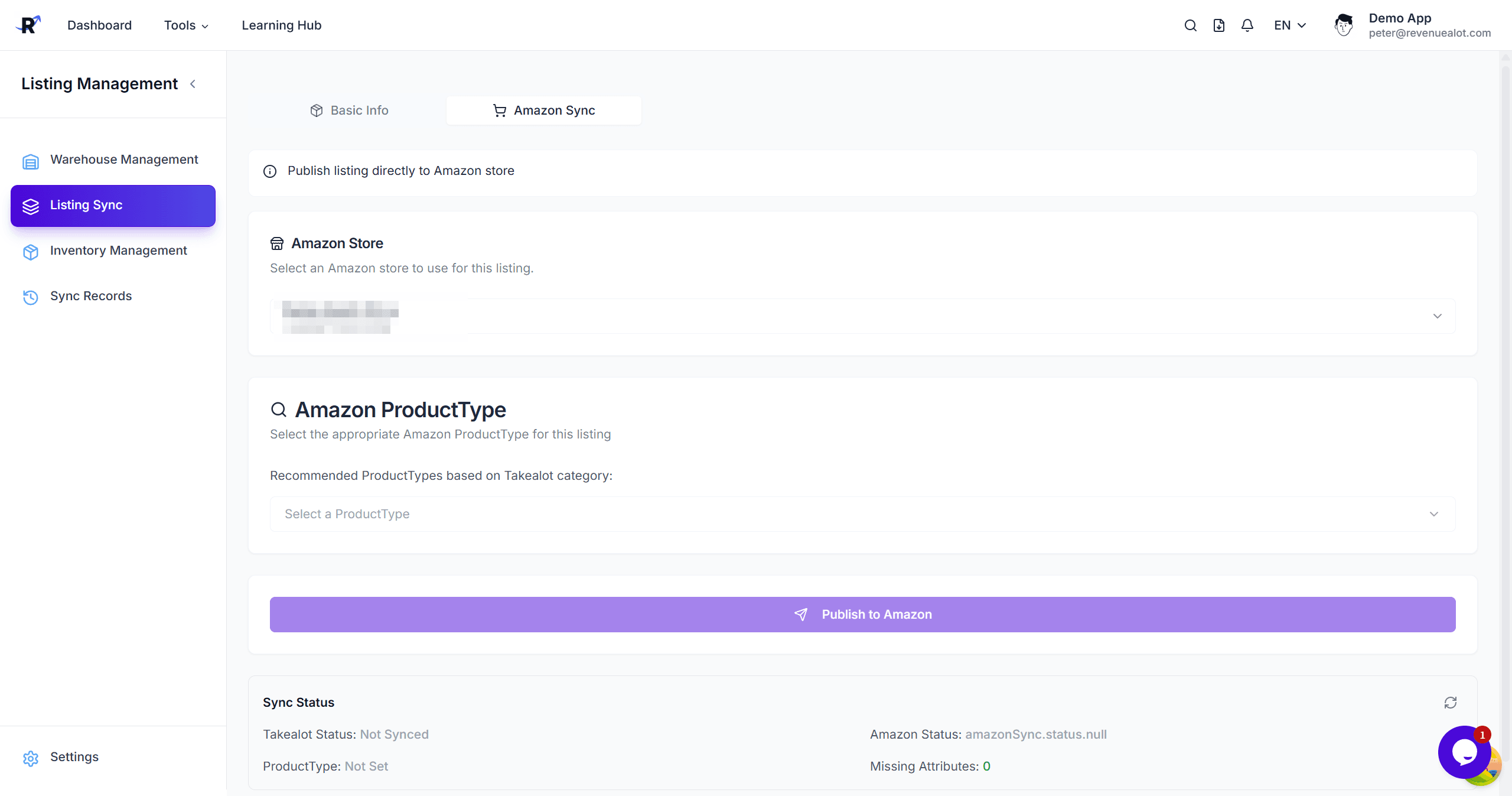
Open a listing already imported from Takealot and switch to the Amazon tab.
Step 2: Select Amazon Store
Choose the target Amazon store in the selector.
Store-level GTIN rule: If the selected store is GTIN exempt, the system automatically sends supplier_declared_has_product_identifier_exemption; if it is not exempt, UPC/EAN/GTIN must be completed before publishing.
Step 3: Choose ProductType
Pick a ProductType from recommendations or:
- Open the full list of ProductTypes
- Browse by category using the Browse Tree
Step 4: Fill Required Attributes
Complete missing required fields highlighted by the system. For stores that are not GTIN exempt, this also includes UPC/EAN/GTIN.
Step 5: AI Title (optional)
Generate and copy an Amazon-friendly title with one click.
Step 6: Variation Theme and Variants (optional)
If the listing has variants:
- Select a variation theme
- Edit each variant’s attributes, images, price, and stock
Step 7: Price and Stock (single item)
If no variation theme is selected, set price, stock, and fulfillment type directly.
Step 8: Publish
Click Publish to push the listing to Amazon and review the results.
Troubleshooting
Publish failed due to missing fields
Complete required attributes and try again.
Publish failed due to missing UPC/EAN/GTIN
Check whether the selected Amazon store has GTIN exemption turned off. If it does, you must provide a valid product identifier before publishing.
Variation theme mismatch
Ensure the selected theme matches variant attributes.
Next Steps
- 📈 Amazon Store Metrics - Store-level KPIs
- 📦 Amazon Product Analytics - Product insights