Smart Selection (Black Box)
Smart Selection (Black Box) is a powerful product research tool that helps you discover high-potential product opportunities on Takealot by setting multi-dimensional filter criteria. Unlike keyword search, Smart Selection allows you to filter by product characteristics, competition, and sales performance.
Core Value
- Criteria-Based Search: Search by product characteristics (price, rating, review count, etc.) rather than keywords to discover hidden opportunities
- Multi-Dimensional Filtering: Three-column filter layout supporting product, competitor, and sales data filtering
- Trend Analysis: View price trends and revenue trends to assess market performance
Quick Start
1. Set Filter Criteria
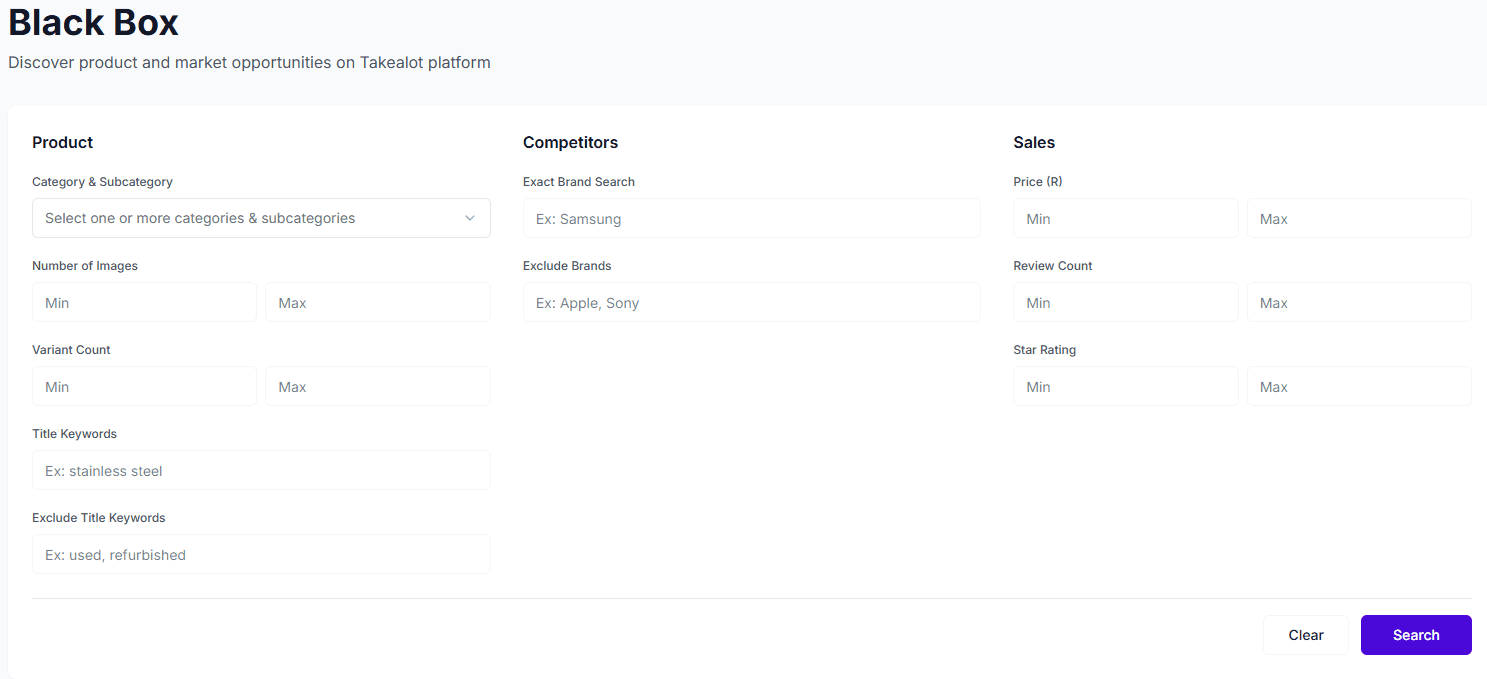
The filter panel is divided into three columns:
Product Column:
- Category & Subcategory: Multi-select, choose multiple categories simultaneously
- Number of Images: Set min/max image count range
- Variant Count: Set min/max variant count range
- Title Keywords: Include specific keywords (e.g., stainless steel)
- Exclude Keywords: Exclude products containing specific keywords (e.g., used, refurbished)
Competitors Column:
- Exact Brand Search: Search for products from specific brands (e.g., Samsung)
- Exclude Brands: Exclude specific brands (e.g., Apple, Sony)
Sales Column:
- Price (R): Set price range (min/max)
- Review Count: Set review count range (min/max)
- Star Rating: Set rating range (1-5 stars, min/max)
2. Search & Analyze
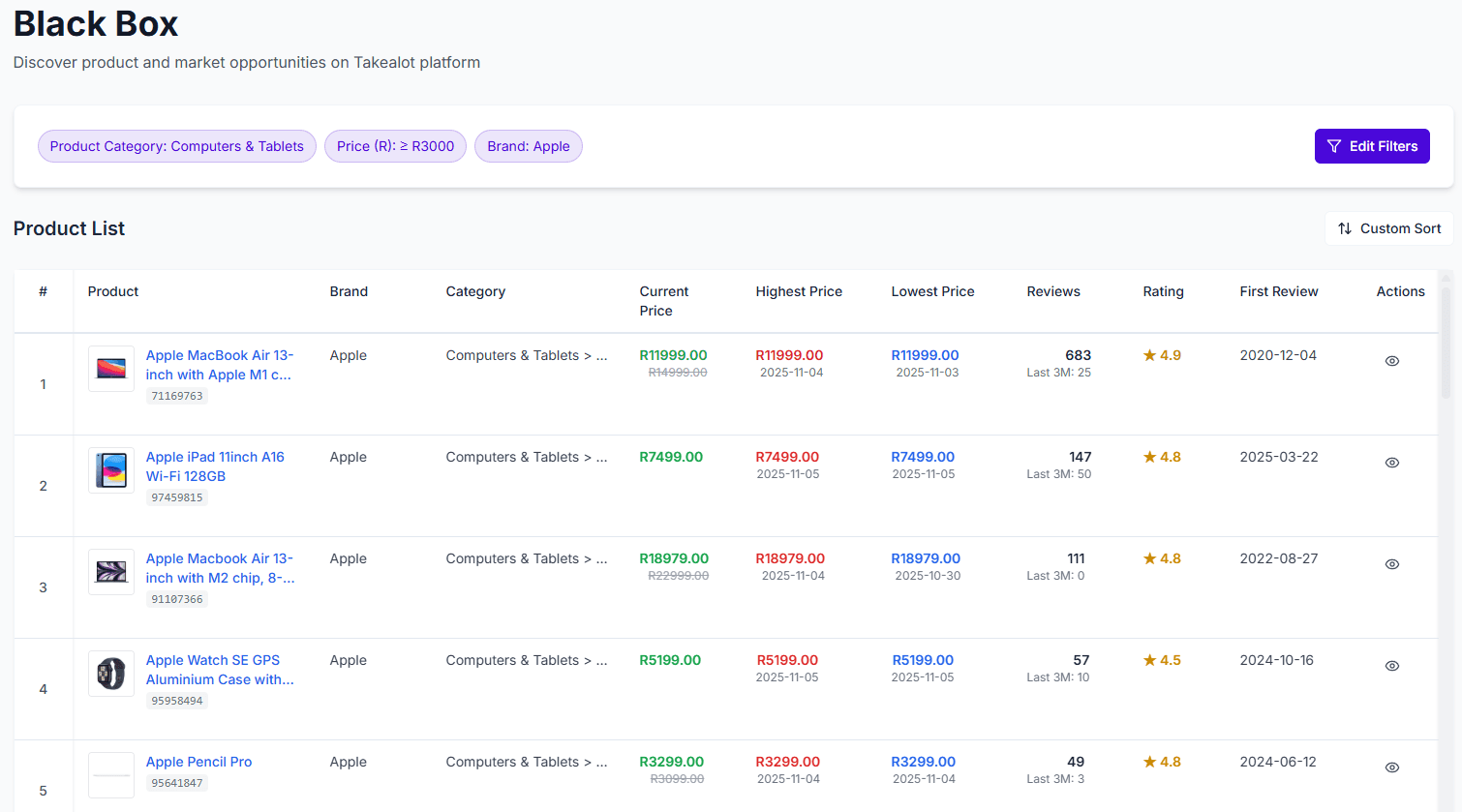
After clicking the “Search” button, the system displays a list of products matching your criteria. You can:
- View Product Details: Price, rating, review count, brand, and more
- View Trend Charts: Price trends and revenue trends (if data available)
- Custom Sort: Sort by price, rating, review count, and other fields
- Infinite Scroll: Automatically load more results, up to 200 products
Feature Details
Filter Tags
After searching, applied filter conditions are displayed as tags at the top of the results page for quick viewing and editing.
Sorting
Supports sorting by the following fields:
- Product ID
- Title
- Price
- Rating
- Review Count
- Created At
- Updated At
Trend Analysis
For products with historical data, you can view:
- Price Trends: Product price changes over time
- Revenue Trends: Estimated revenue changes over time
Use Cases
- Product Discovery: Set conditions like price, rating, review count to discover products matching your target market
- Competitive Analysis: Use brand filtering and exclusion to analyze specific brands or avoid dominant brands
- Market Opportunities: Set conditions like review count and rating to find products with less competition but existing demand
- Portfolio Optimization: Explore new categories to diversify your product line
Notes
- Smart Selection requires a Business plan or higher
- Search results return up to 200 products maximum
- Trend data is based on system crawling and may have delays
- We recommend combining with Keyword Research and Competitor Research tools for comprehensive product analysis