Inventory Management
This Inventory Management guide is the consolidated operating guide for Revenuealot Inventory Management. It connects demand, stock, goods in transit, and warehouse routes in one planning suite so multi-channel teams can decide what to purchase, where to deliver inventory, which products deserve more working capital, and how stock can move through the warehouse network.
The suite contains four connected modules:
- Purchase Plan turns sales and inventory signals into reviewable purchase suggestions.
- Delivery Plan allocates available stock to configured platform and fulfilment destinations.
- Product Grading compares inventory performance using turnover, GMROI, profit, and operational risk indicators.
- Warehouse Management defines the nodes, store ownership, routes, and transit times used by the planning modules.
Inventory planning uses generated daily snapshots. It is not a real-time warehouse execution system. Each snapshot records the available sales, stock, transit, route, and configuration context at generation time.
Purchase Plan
Purchase Plan brings product demand, supplier lead time, on-hand stock, stock in transit, safety stock, and route inventory into one workspace. Teams can review the result before committing purchasing capital, adjust quantities where permitted, and export the current plan.
It supports comparison across 3, 7, 14, 30, 60, and 90-day sales windows together with daily, monthly, and weighted sales signals.
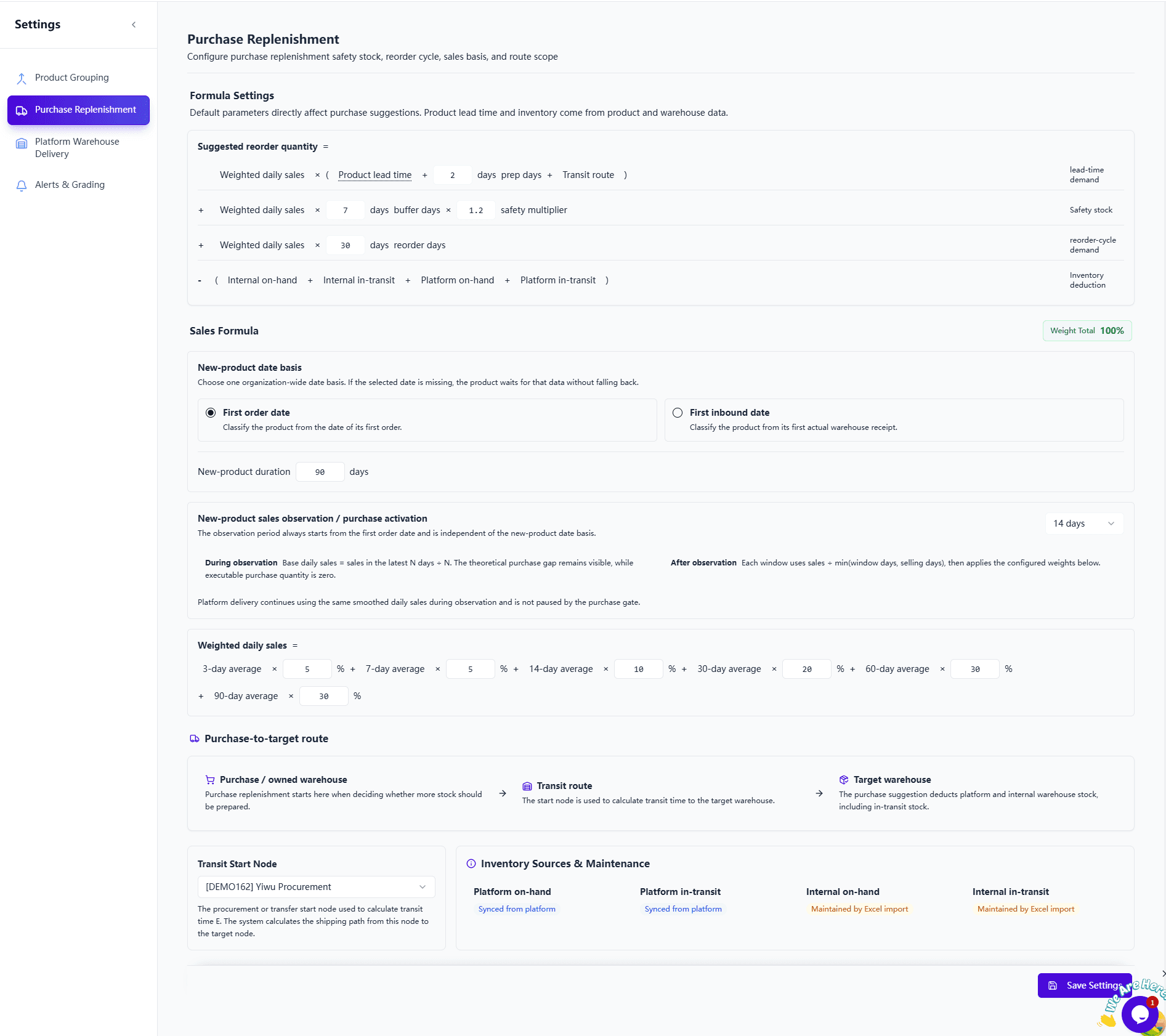
Use Purchase Plan when you need to:
- identify products approaching their reorder point;
- compare short-term demand with longer sales history;
- include on-hand, in-transit, route, and safety stock in the decision;
- filter, review, adjust, and export purchase suggestions.
Delivery Plan
Delivery Plan calculates how much stock should move from an internal warehouse or distribution centre to each configured platform destination. It uses destination-level demand, destination stock, platform goods in transit, route reachability, transit time, reserve, and allocation rules.
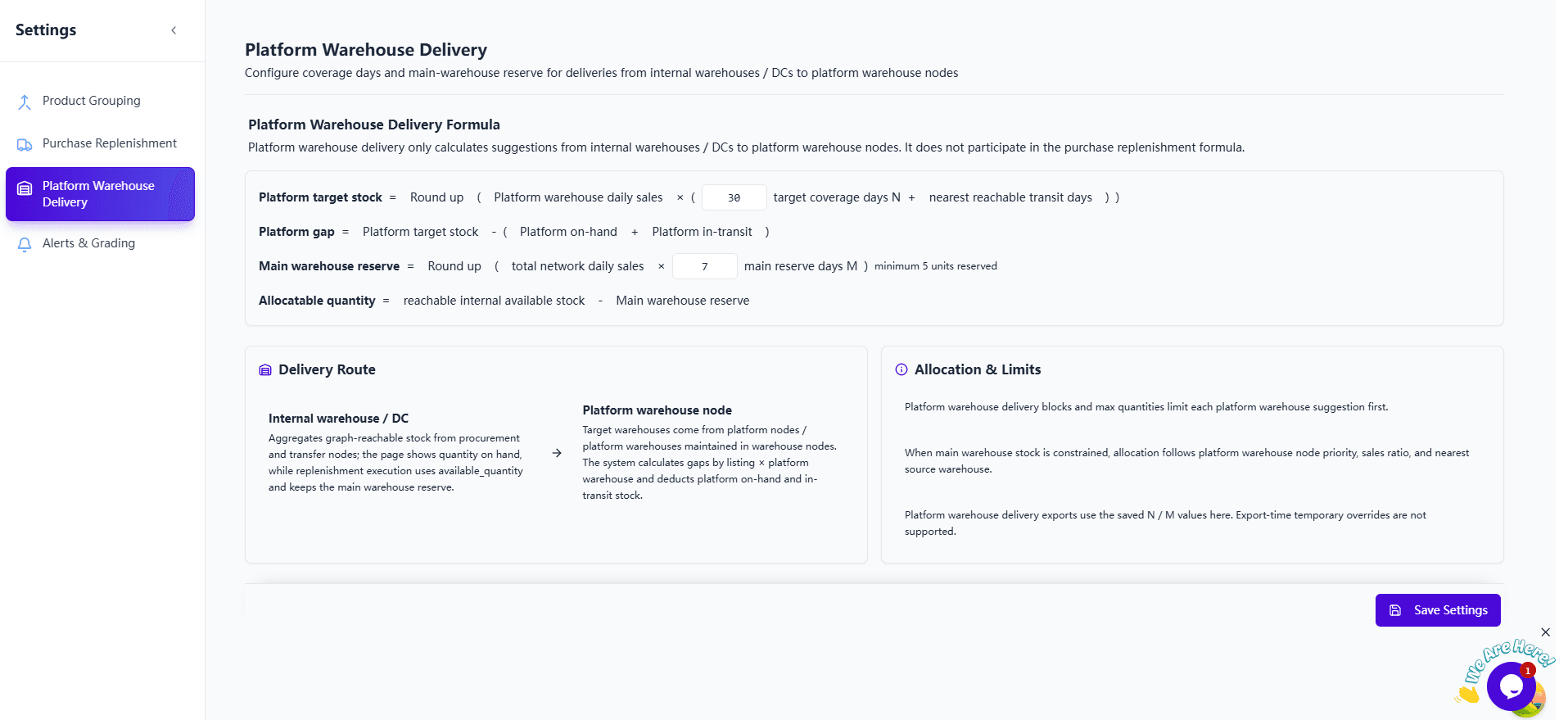
Use Delivery Plan when you need to:
- calculate target coverage and stock gaps for each destination;
- separate destination sales and inventory rather than relying on a cross-node total;
- protect the main warehouse with reserve and allocation limits;
- prepare export-ready delivery plans for enabled destinations.
Product Grading
Product Grading combines product economics, sales, inventory value, and stock duration to show where inventory capital is working effectively. GMROI and inventory-turnover grades sit alongside cost, gross profit, sales windows, and risk tags so teams can focus on the products that need action.
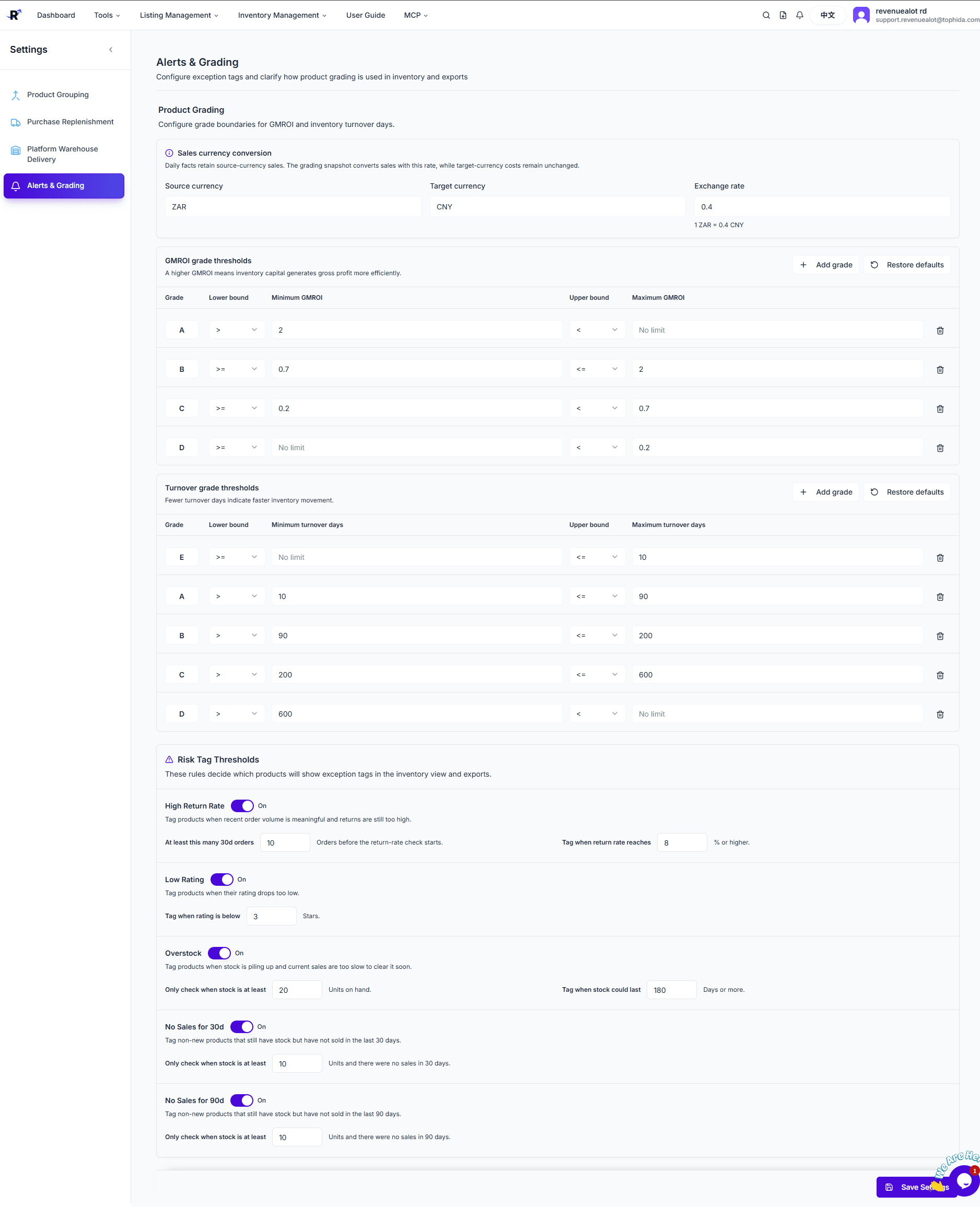
Use Product Grading when you need to:
- compare GMROI and inventory-turnover performance;
- review cost, gross profit, inventory value, and demand together;
- identify overstock, no-sales, returns, or rating risks;
- filter and export product groups for follow-up.
Warehouse Network
Warehouse Management is the network model behind Purchase Plan and Delivery Plan. It represents procurement, owned, transfer, fulfilment, and platform nodes, then defines which routes are reachable and how many standard transit days each route requires.
Use Warehouse Management to bind stores and destinations to the correct inventory owner, maintain route reachability, and make planning follow the way goods actually move.
Shared Inputs And Rules
The four modules use the same operating context:
- generated daily inventory snapshots;
- 3, 7, 14, 30, 60, and 90-day sales windows;
- daily, monthly, and weighted sales metrics;
- on-hand, in-transit, and route-node inventory;
- supplier lead time and warehouse transit time;
- purchase, delivery, grading, and risk-tag settings;
- store bindings, destination ownership, and warehouse paths.
Changing a rule affects future generated planning results. Review the snapshot time and active configuration before comparing or exporting results.
Recommended Workflow
- Build the warehouse network and verify store and destination bindings.
- Configure purchase, delivery, grading, and operational risk rules.
- Generate and review the daily inventory snapshot.
- Review Purchase Plan and confirm procurement quantities.
- Review Delivery Plan by destination and confirm stock allocation.
- Use Product Grading to prioritize capital and operational follow-up.
- Export the reviewed result set for the next business process.
Channels And Destinations
Configured Takealot, Amazon, Makro, and Temu destinations can participate in inventory planning. Actual availability depends on the channels, stores, nodes, and routes enabled for your organization.
Official Customization Support
Inventory operations differ by channel and warehouse network. If you need additional marketplace connections, ERP or inventory integrations, warehouse paths, calculation rules, approval steps, or export formats, contact the Revenuealot official team for assessment.
Open the Inventory Management product page and choose Contact us for customization to reach the team through the official email or WeChat contact options.
Custom requirements are assessed individually. Scope, delivery time, and support boundaries are confirmed with the Revenuealot team before implementation.