Product Management
Product Management organizes marketplace Listings by sellable SKU and brings their channel overview, stores, statuses, identifiers, and actions into one page. It also turns an eligible Takealot source Listing into a destination-specific publication draft without losing the source relationship.
Availability: Product Management is available on Business and Enterprise plans. Your organization must also grant you the Product Management tool permission. The stores and publication destinations you see depend on connected stores and the capabilities enabled for each channel.
Product Management vs Product Sync
These are separate workflows:
| Product Management | Product Sync |
|---|---|
| Manages related marketplace Listings from one page, grouped by sellable SKU | Runs listing import and synchronization workflows |
| Maintains shared product, media, and package information | Tracks data movement and synchronization results |
| Synchronizes saved product data through destination-specific drafts | Does not replace the Product Management destination editor |
For the separate source-data collection and sync-history workflow, use the Product Sync guide.
Two meanings of sync: In Product Management, Listing Sync means using a Takealot source Listing to prepare and submit an Amazon, Temu, or Makro destination publication. The separate Product Sync feature continues to own its existing marketplace data-import and synchronization workflow.
The two core Product Management capabilities
- One-page multi-channel Listing management — search, filter, expand, and operate related Takealot, Amazon, Temu, and Makro Listings from one page; the unified product row keeps their cross-channel relationship visible.
- Listing Sync — a saved product and its selected Takealot source Listing are adapted to the requirements of an Amazon, Temu, or Makro destination.
Supported import and sync direction
| Stage | Marketplace | Product Management behavior |
|---|---|---|
| Source import | Takealot | Uses an eligible captured Takealot Listing as traceable source content and product variants. |
| Sync destination | Amazon | Prepares a destination draft for product type, variation, attributes, SKU offers, validation, and publication. |
| Sync destination | Temu | Prepares category, product information, SKU/offer, logistics, validation, and destination submission. |
| Sync destination | Makro | Prepares one selected SKU and creates a linked Makro Seller Portal remote draft. |
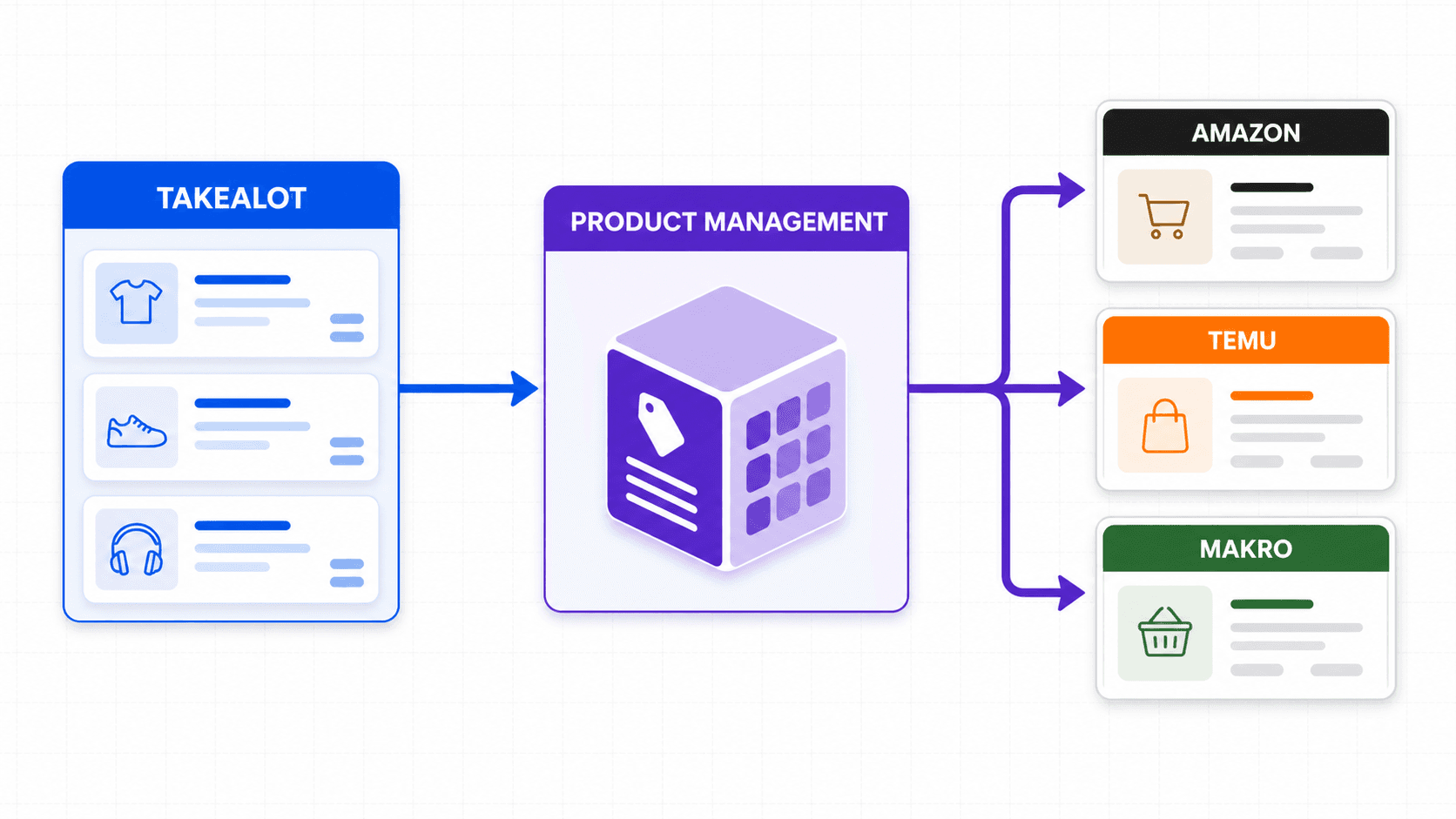
“Import” and “export” here describe marketplace data flow. Export means preparing or submitting a destination publication; it is not a CSV or Excel file download.
Configure SKU matching before the first merge
Product Management applies the organization’s matching rule to each channel Listing SKU. It does not match Listing titles. Listings that produce the same comparison SKU are organized under the same unified product.
Open Product Management → Settings → Matching Rule Settings to review the effective rule.
- The system default is
^(.+)$: it matches each complete non-empty SKU and fixes quantity per pack at1. - An organization override can use regular-expression capture groups to extract both the comparison SKU and quantity per pack.
- SKU location identifies the capture group used to compare and group Listings.
- Quantity per pack location identifies the capture group used as the package quantity.
For example, for MUG-BLACK-QTY2 and MUG-BLACK-QTY4, use:
Matching rule: ^(.+)-QTY(\d+)$
SKU location: 1
Quantity per pack location: 2
Both Listings resolve to the comparison SKU MUG-BLACK, while their quantities remain 2 and 4.
Test the expression before saving. Only an organization admin or owner can change the rule and run Save and Merge Listings. Restoring the system default only changes the unsaved draft; it is not applied until you save and merge.
Before you start
Make sure that:
- Your organization uses a Business or Enterprise plan.
- Your member account has effective access to Product Management.
- A Takealot source store is connected and its Listings have been captured or synchronized into Revenuealot.
- The Amazon, Temu, or Makro destination store is connected and its publication capability is enabled.
- The effective SKU matching rule has been reviewed and tested against representative source SKUs.
- Product titles, media, identifiers, package measurements, price, and inventory are ready for review.
1. Find a product and inspect its channel Listings
Open Listing Management → Product Management. Search by product title, SKU, or another identifier, then narrow the result with Platform and Store filters.
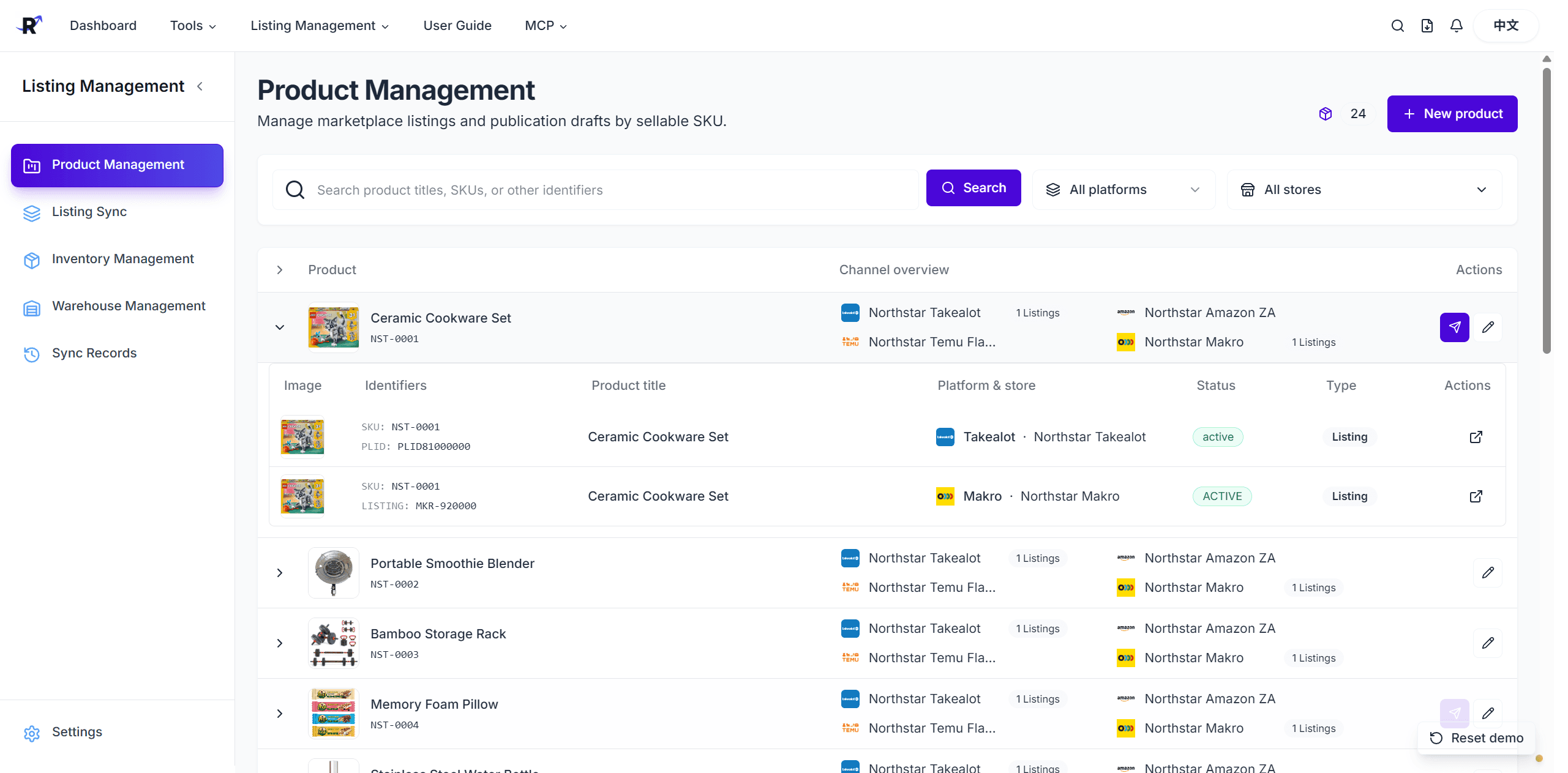
Each top-level row is a unified product. Its Channel overview shows related Takealot, Amazon, Temu, and Makro stores without requiring you to switch between separate marketplace lists. Expand the row to inspect every related Listing underneath, including its marketplace identifier, store, status, and direct channel action.
Use the expanded channel Listings to confirm that the correct marketplace records were grouped together before editing shared product information or creating a publication draft.
2. Maintain the unified product information
Open a product and stay on the Product information tab. Review the shared title, subtitle, brand, place of origin, description, media, and package information.
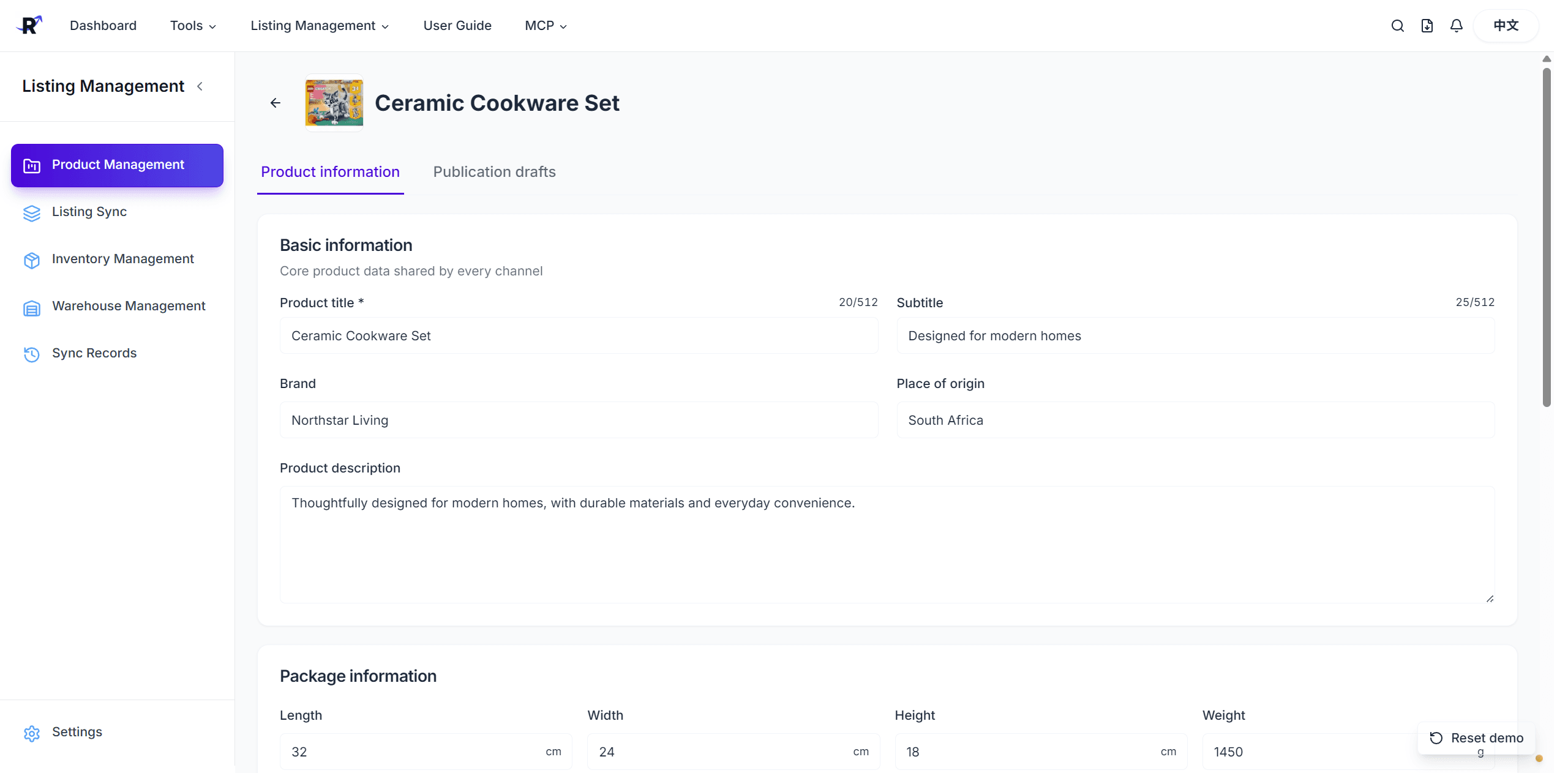
The basic product record is shared across channels. Package length, width, height, and weight provide the reusable logistics baseline. Destination-only attributes, category choices, offers, and compliance fields are completed later inside each publication draft.
Save accurate reusable values here first so future destination drafts start from a reliable product record.
3. Review publication destinations and draft status
Select the Publication drafts tab. The table shows every eligible destination store, its site, draft status, configuration progress, source listing, and last update time.
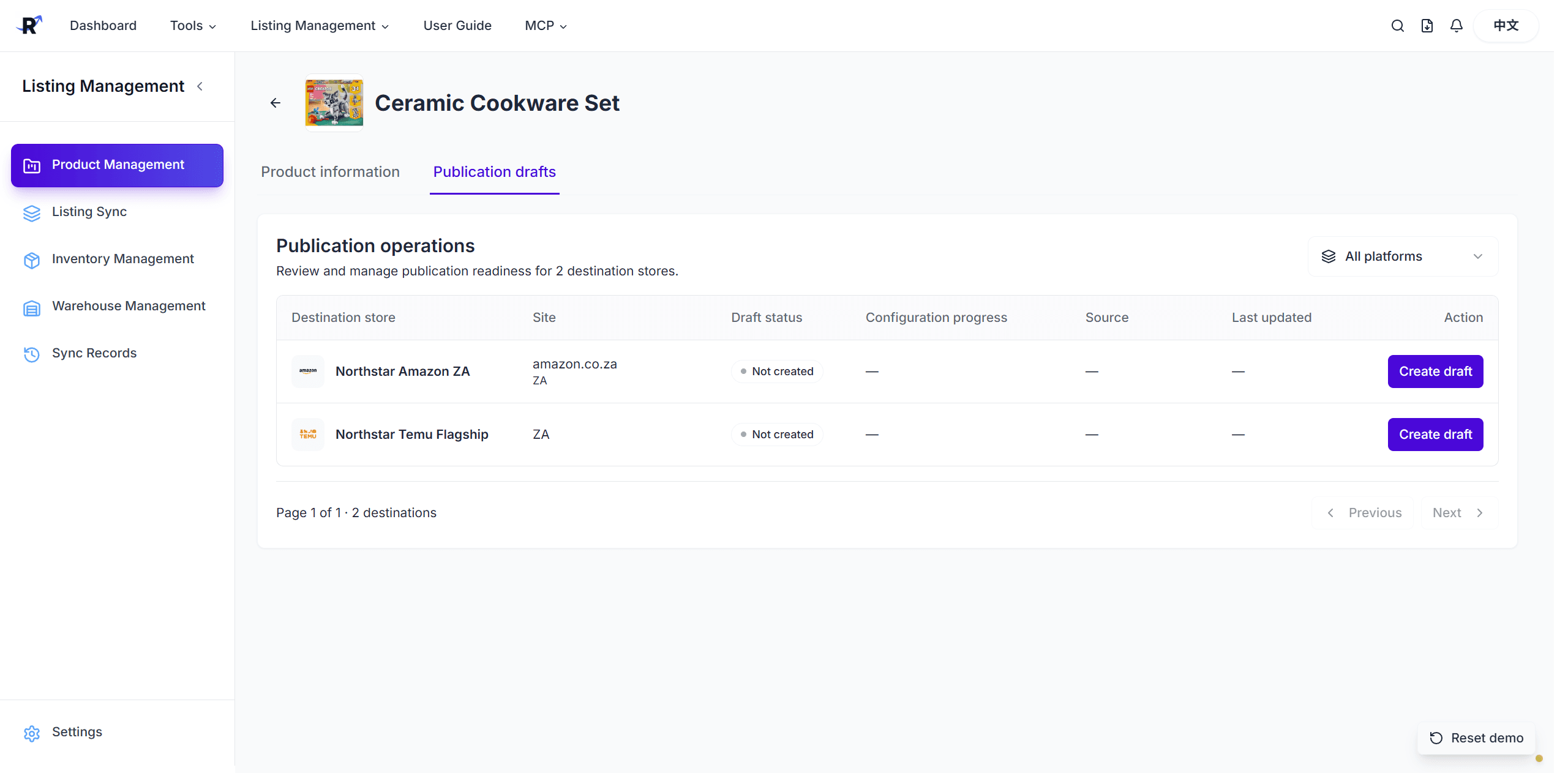
Use the platform filter when several destinations are available. A Not created status means no destination draft exists yet. Other status and progress values help you continue an incomplete draft or review a submitted one. The destinations displayed here are determined by connected stores and currently enabled publication capabilities. The screenshot shows Amazon and Temu; Makro appears when a connected Makro destination is available.
4. Create a draft from a source listing
Choose the destination row and click Create draft. In the dialog, select the source listing whose content should be used as the starting point.
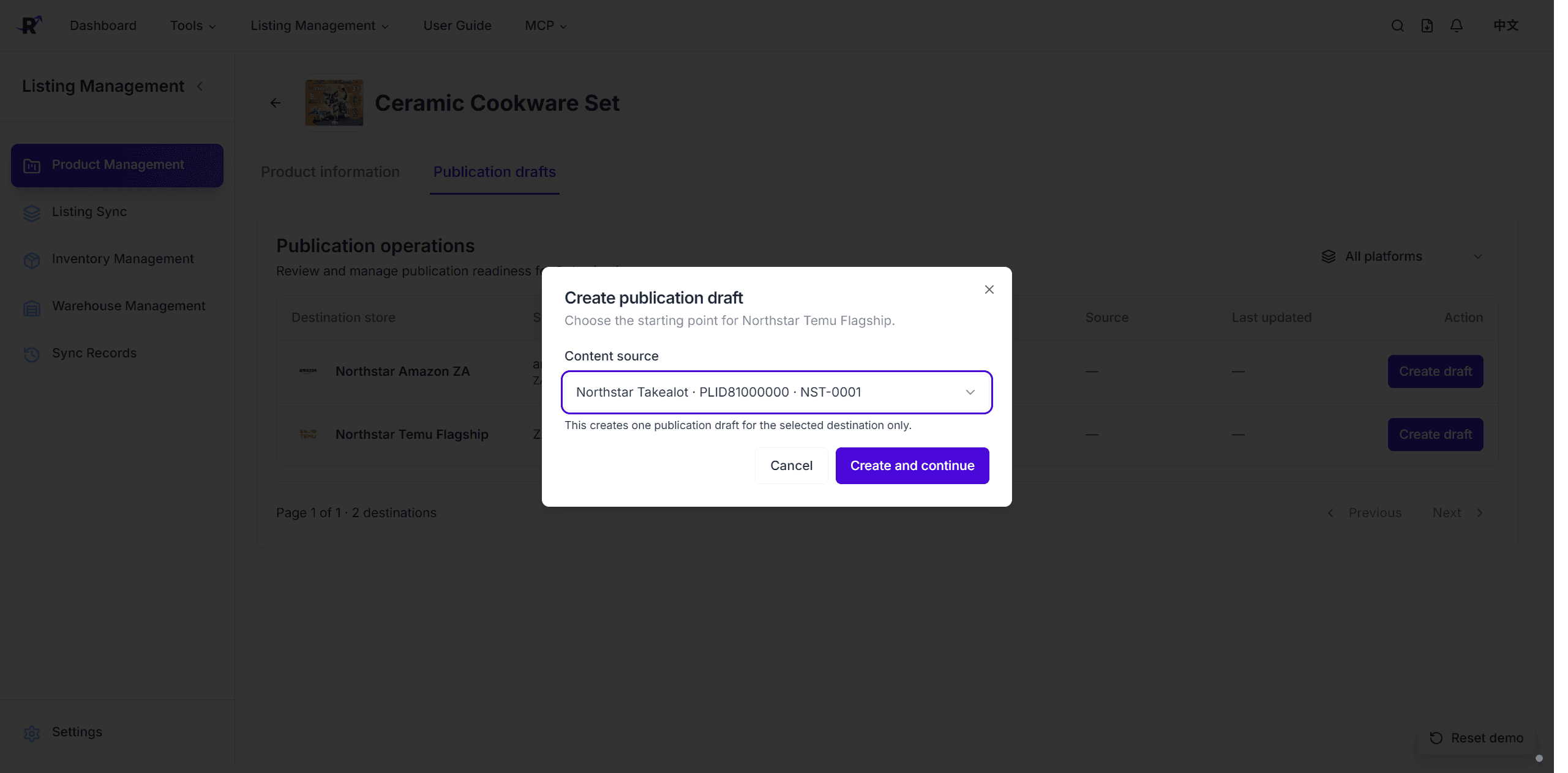
The source selector identifies the store, marketplace identifier, and SKU so you can verify the exact origin. Click Create and continue to create one draft for the selected destination only. The source remains linked for traceability; the new draft can then be adapted to the destination schema.
5. Complete the destination-specific publishing workflow
All three destinations begin with the same saved product and selected Takealot source Listing, but their editors and final outcomes differ.
Amazon
- Select the Amazon store, seller product type, variation type, and fulfilment method.
- Complete the required and suggested Amazon product attributes.
- Review parent/child SKUs, identifiers, offers, inventory, and media.
- Save, validate, resolve blocking issues, and publish to the selected Amazon store.
Makro
- Select the Makro category and review the main title, subtitle, attributes, and content.
- Select exactly one SKU for the remote draft, then confirm Seller SKU, price, package data, and media. Inventory is not required to create the remote draft.
- Save and validate the Product Management draft.
- Create the linked Makro Seller Portal draft, then review the task details or Seller Portal before completing the marketplace workflow.
Temu
Temu uses the detailed four-stage example below: category and variants, product information, SKUs/offers/logistics, then validation and publication.
6. Temu example: configure the product type and attributes
The Temu editor organizes required work into four stages: Product type, Product attributes, SKU & offer, and Validate & publish. Start by selecting the closest seller product type and then confirm the variation type.
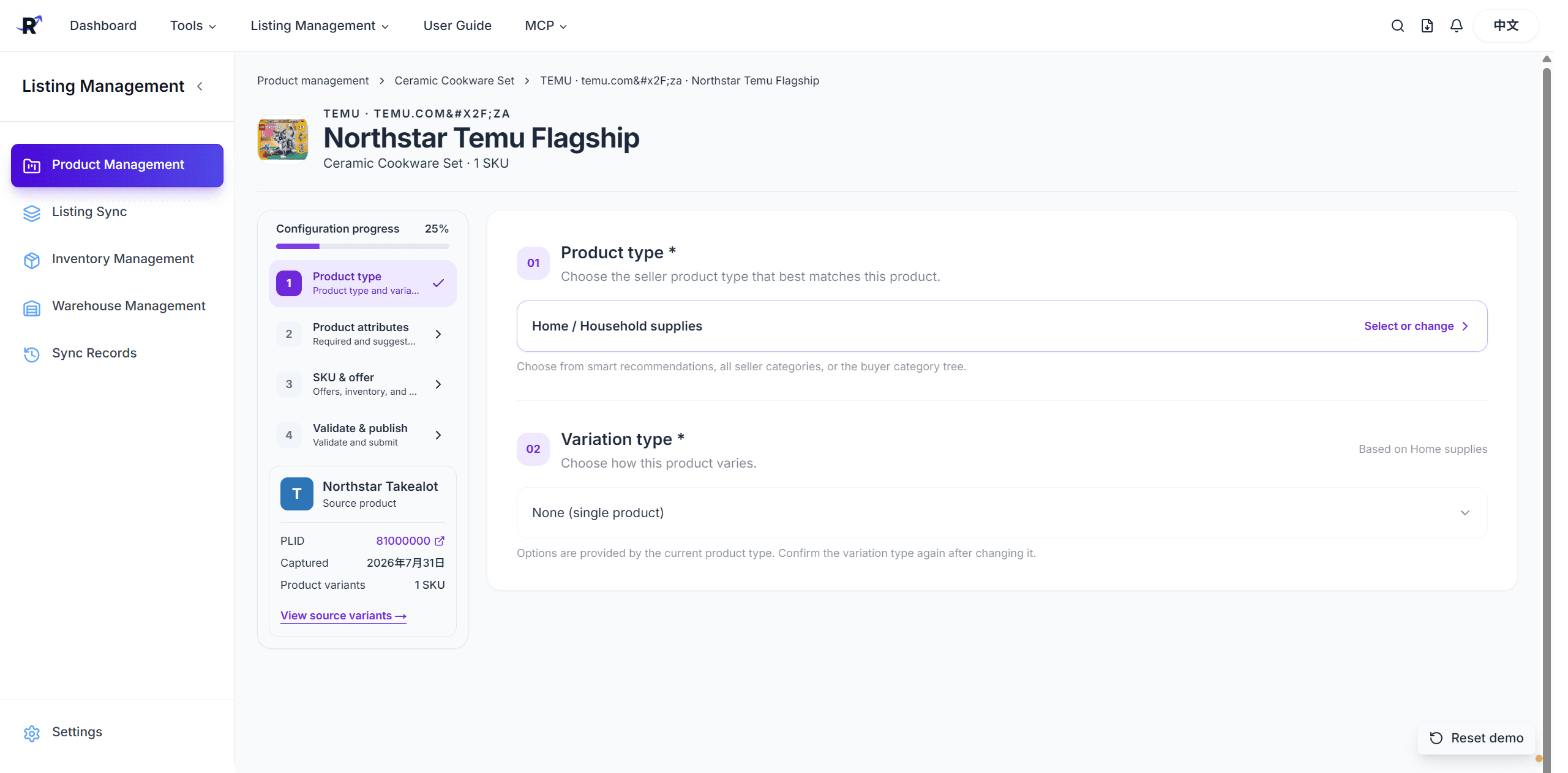
After the product type is selected, complete the required and suggested product attributes. Changing the product type can change available variations and attribute requirements, so review dependent values again after a category change. The source-product panel keeps the original listing and variants visible throughout the workflow.
7. Temu example: complete SKU, offer, and logistics data
In SKU & offer, first confirm the sales attributes and specification values that define each sellable variant. Then complete every required field in the SKU offer table.
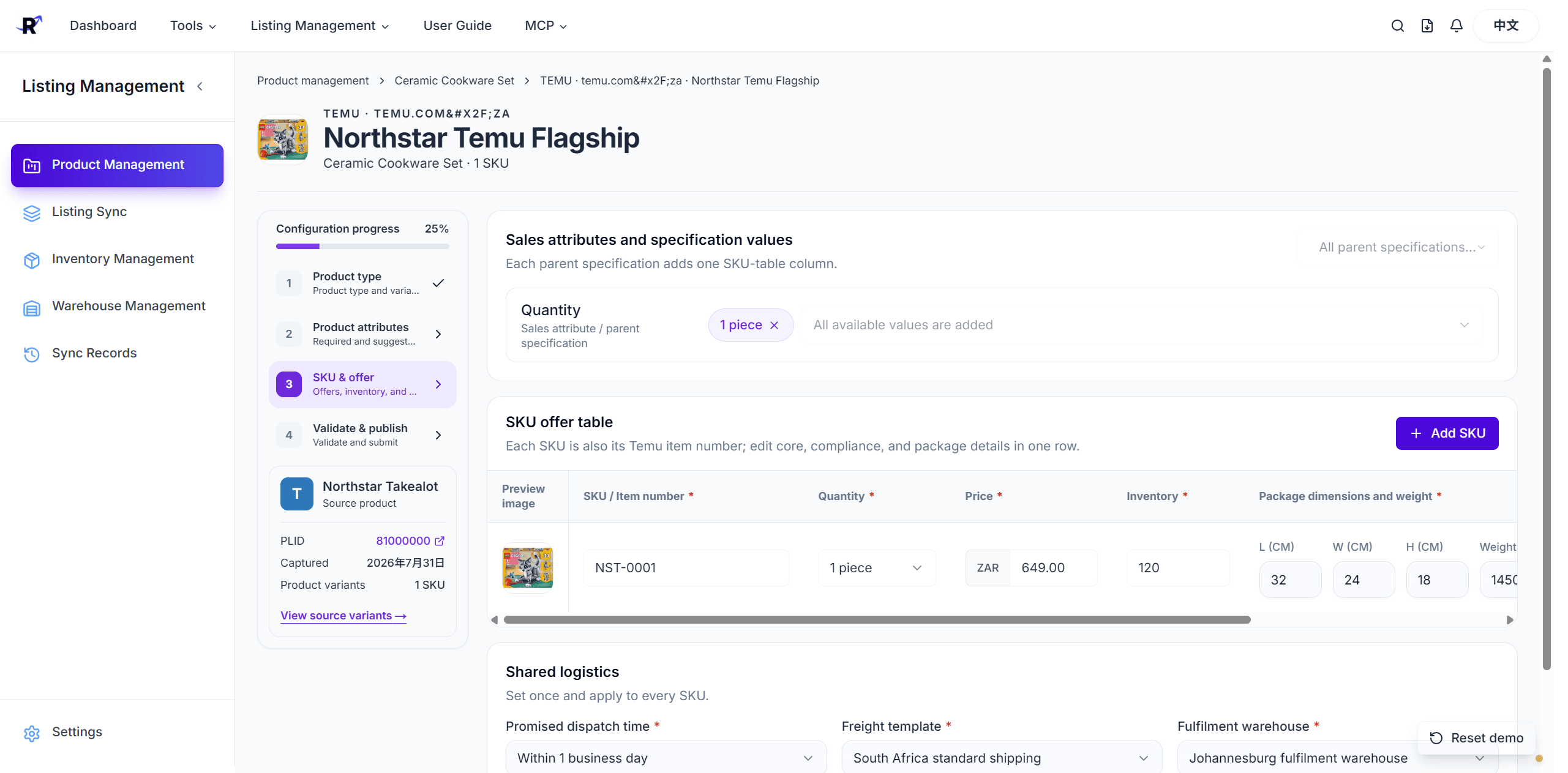
For each SKU, verify:
- SKU / Temu item number and preview image
- Sales quantity or other variant values
- Price and inventory
- Package length, width, height, and weight
- Any channel-required compliance fields
Complete shared logistics such as promised dispatch time, freight template, and fulfilment warehouse. Values marked with an asterisk are required before validation can pass.
8. Temu example: validate and publish
Open Validate & publish after the previous stages are complete. Validation checks the saved draft against the current Temu schema and reports blocking issues before submission.
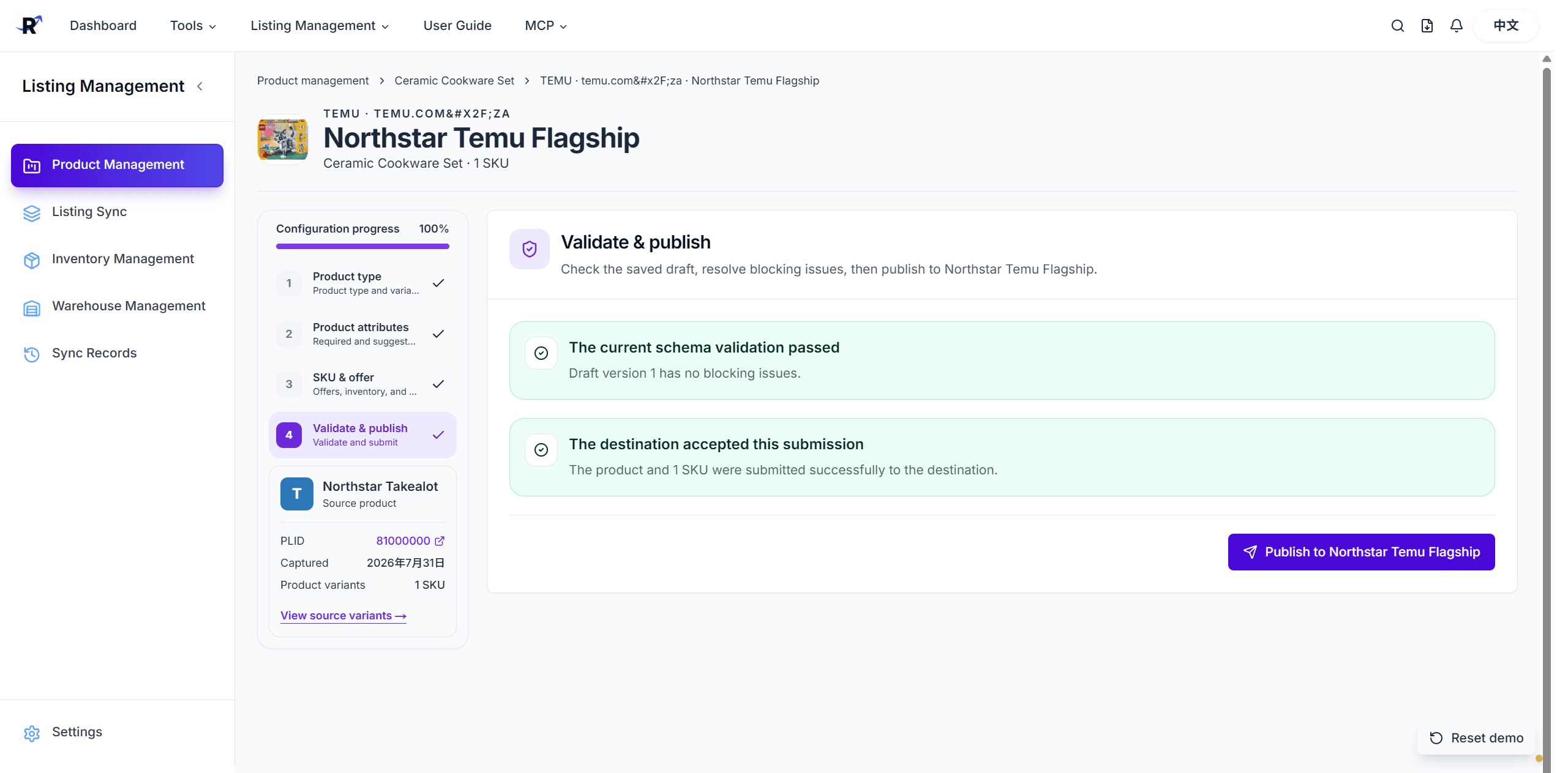
The result area separates two important outcomes:
- Schema validation passed — the saved draft has no blocking field or schema issues.
- Destination accepted the submission — the product and its SKUs were successfully submitted to the selected Temu store.
If validation fails, return to the highlighted stage, correct the missing or invalid value, save, and validate again. If validation succeeds but destination submission fails, keep the draft and use the returned marketplace message to correct the data or store connection before retrying.
Publication affects the selected destination store. Confirm the destination, price, inventory, package measurements, and source SKU before submitting.
Troubleshooting
| Problem | What to check |
|---|---|
| Product Management is not visible | Confirm a Business or Enterprise plan and effective member tool permission. |
| Listings were grouped incorrectly | Review the matching rule against the actual Listing SKUs, confirm the SKU and quantity capture-group locations, test representative values, then save and merge again. |
| A source listing is missing | Check the platform/store filters, connected source store, listing status, and SKU grouping. |
| A destination is missing | Confirm that the destination store is connected and publication is enabled for that channel. |
| Create draft is unavailable | Confirm there is an eligible source listing and that your member can use Product Management. |
| Required attributes changed | Recheck product type and variation type; category changes can refresh dependent options. |
| Validation is blocked | Complete every required product, attribute, SKU, offer, package, compliance, and logistics field. |
| Destination rejected submission | Review the marketplace response, store authorization, identifiers, price, inventory, and channel policies, then retry from the saved draft. |