Replenishment Settings (reorder-settings)
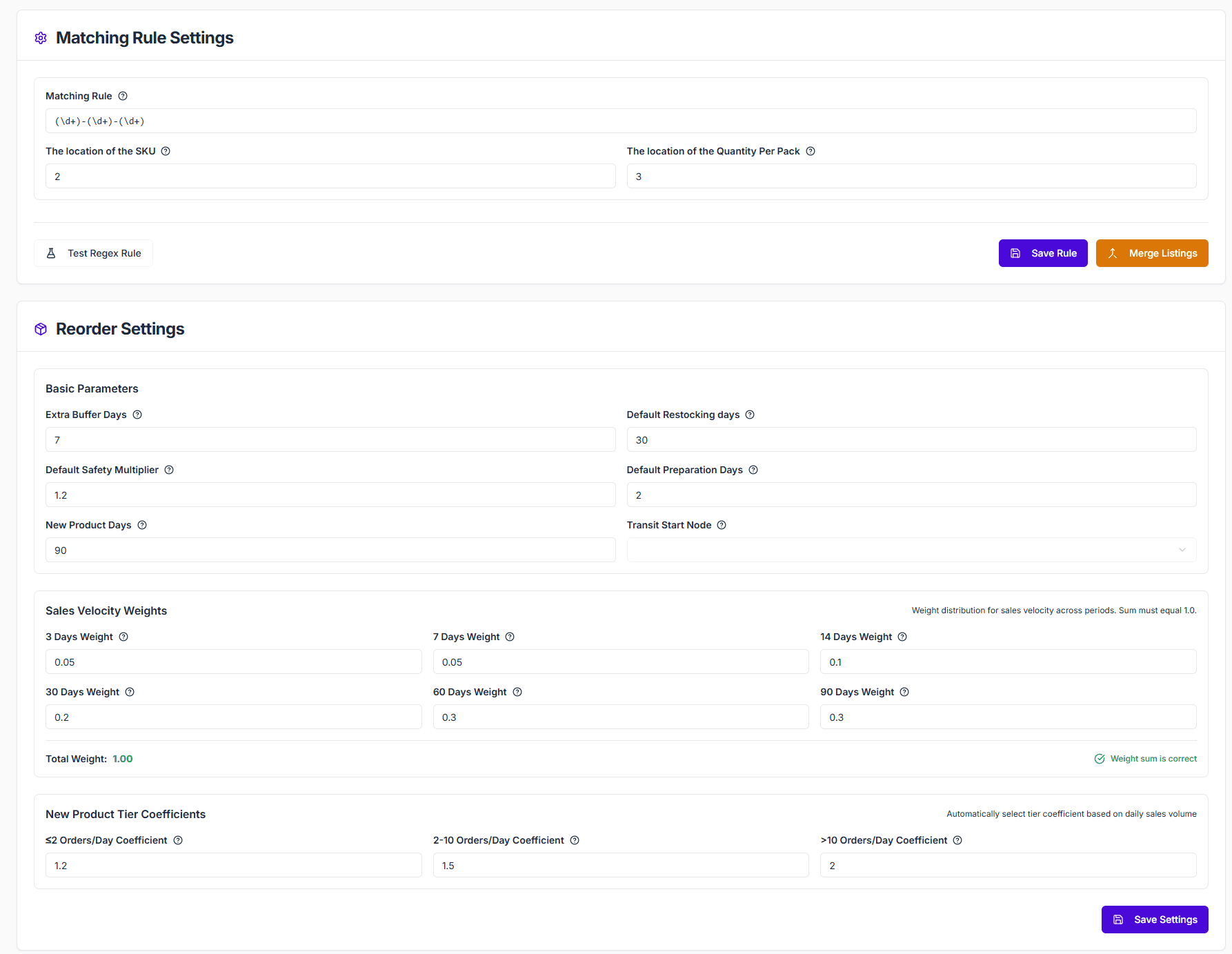
Replenishment Settings is the rule center of the replenishment module. This page determines both how listings are merged into products and how replenishment recommendations are calculated from sales, stock, and transit context.
Core Value
- Unify product identity: merge listings from multiple platforms into one product.
- Unify replenishment logic: standardize how cycle, safety stock, and weighted sales affect recommendations.
- Control transit impact: use the transit start node to define lead time and route inventory scope.
- Support ongoing tuning: adjust business rules without changing code.
Quick Start
1. Configure Matching Rules
Start with Pattern, Compare Index, and Extract Index so the system can identify the same product correctly.
- Pattern: defines SKU structure, usually with a regular expression.
- Compare Index: defines which extracted part is compared to identify the same product.
- Extract Index: defines which extracted part is used as quantity or packaging metadata.
2. Test and Run Merge
Before saving the rule, validate it with real samples.
- Test single SKUs first and confirm the compare value and extract value are correct.
- Then test common SKUs in batches, especially looking for false merges and missed merges.
- After saving, run merge so product-to-listing relationships are refreshed.
If you save the rules without running merge, Inventory Management may still display the old product-to-listing relationships.
3. Configure Replenishment Parameters
After the rule is stable, configure the replenishment parameters.
- Default Safety Stock Days: defines how many extra days of stock you want as a buffer.
- Default Replenishment Cycle: defines how many days of demand each recommendation should cover.
- Default Safety Multiplier: scales the safety-stock portion up or down.
- Default Prep Days: represents preparation time before dispatch.
- New Product Days: defines how long a product is treated as new.
Product lead time is a product-level field synced from Odoo vendor lead time. It is not maintained or edited on this page or anywhere else in Revenuealot.
4. Set the Transit Start Node
The transit start node affects two things:
- The starting point for lead-time calculation.
- The route inventory scope used in replenishment logic.
It is usually easier to understand this setting after your main warehouse nodes and store bindings are already configured.
Feature Details
Matching Rules
Matching rules determine whether listings from different platforms should be grouped into the same product. If the rules are inaccurate, the most common symptom is a large number of unmatched listings or listings that should belong together being split apart.
Replenishment Parameters
Replenishment parameters affect weighted sales, the reorder point, and the final recommended replenishment quantity. Default cycle, safety stock days, and safety multiplier are usually the most visible drivers.
Sales Weights and New Product Handling
Sales weights define how 3-day, 7-day, 14-day, 30-day, 60-day, and 90-day sales contribute to weighted daily sales. New Product Days controls whether the system switches to a “since first order, capped at 30 days” average-sales method for new products.
Transit Start Node
The transit start node affects both transit time and which upstream inventory is counted along the route. Even when product sales stay the same, recommendations can change if the route changes.
Common Questions
Q: Why are many listings still unmatched?
A: Usually because the current rules do not cover those SKU patterns yet. Return to this page and test the rules again.
Q: Why did the results not change after I updated settings?
A: Confirm the settings were saved and wait for the replenishment metrics job to recalculate the output.
Q: Why does the transit start node affect the result?
A: Because the system uses it to calculate both transit time and route inventory scope.
Q: When should I adjust sales weights?
A: When sales are highly volatile or when new-product recommendations consistently deviate from business expectations, adjust sales weights and review whether New Product Days is set appropriately.