Replenishment Quick Start
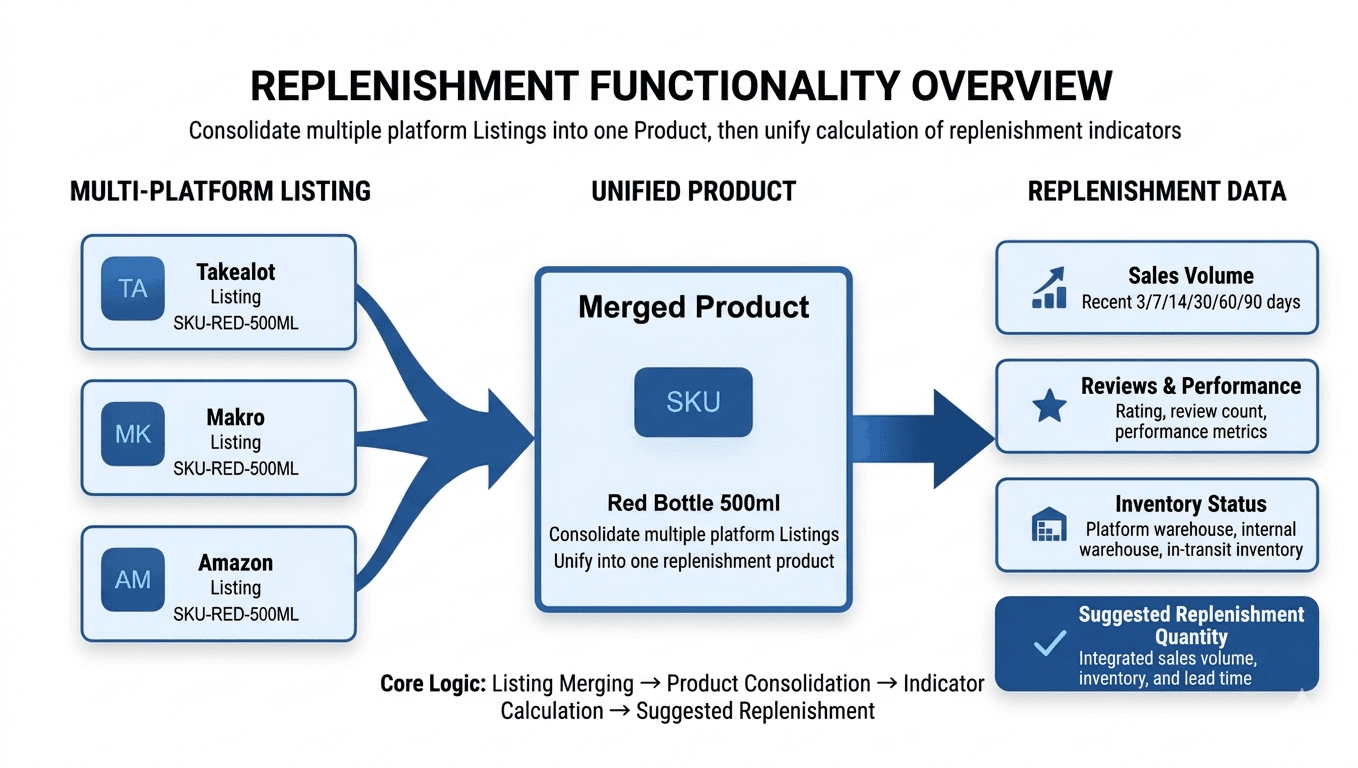
The replenishment module combines listings from multiple platforms into unified products, then uses inventory, sales, and transit time to calculate recommended replenishment quantities.
Who Should Use This
- Operators responsible for replenishment planning
- Team members who maintain warehouse and inventory settings
- Users who need to troubleshoot listing matching and replenishment results
Before You Start
- Replenishment access has been enabled for your organization
- Relevant stores have been connected
- SKU matching rules are ready to configure
- At least one internal node has been created
If this is your first time using replenishment, read this page first and then continue with Replenishment Settings, Warehouse Management, and Inventory Management in order.
How the Pages Work Together
- Replenishment Settings controls how listings are merged and how replenishment is calculated.
- Warehouse Management controls nodes, store ownership, and transit routes.
- Inventory Management is where you review results, troubleshoot issues, import inventory, and export data.
Replenishment Flow
The core process can be understood in four steps:
- Merge listings from multiple platforms into products based on matching rules.
- Sync marketplace inventory and internal inventory into a unified stock view.
- Calculate replenishment metrics using sales, stock, transit time, and replenishment settings.
- Review results, troubleshoot exceptions, and export data from Inventory Management.
Quick Start
Step 1: Configure Replenishment Settings
Go to Replenishment Settings to define matching rules, replenishment parameters, and the transit start node.
Step 2: Configure the Warehouse Network
Go to Warehouse Management to create internal nodes, external nodes, store bindings, and transit times.
Step 3: Review Inventory and Replenishment Results
Go to Inventory Management to review matched products, troubleshoot unmatched listings, and export replenishment data. Product lead time is shown there from the Odoo sync result and is not edited in Revenuealot.
What Each Page Is For
Replenishment Settings
- Define how listings are grouped into products
- Configure replenishment cycle, safety stock, prep days, and sales weighting
- Use this page when you are building or adjusting calculation rules
Warehouse Management
- Configure internal nodes, external nodes, and transit paths
- Bind stores to internal nodes
- Use this page when stores, warehouses, or logistics routes change
Inventory Management
- Review replenishment results for matched products
- Import internal warehouse inventory
- Export replenishment data
- Investigate unmatched listings
Common Setup Mistake
If you open Inventory Management before configuring matching rules, nodes, and transit times, the replenishment results will often look incomplete or misleading.
Common Questions
Why can the same product have different recommended replenishment quantities under different nodes
Because the system recalculates sales, stock, and transit context based on the currently selected node.
Why can exported values differ from what I expected
Exports follow the current node, filter conditions, stock state, and metric calculation timing. Confirm your page filters before exporting.