Listing Management
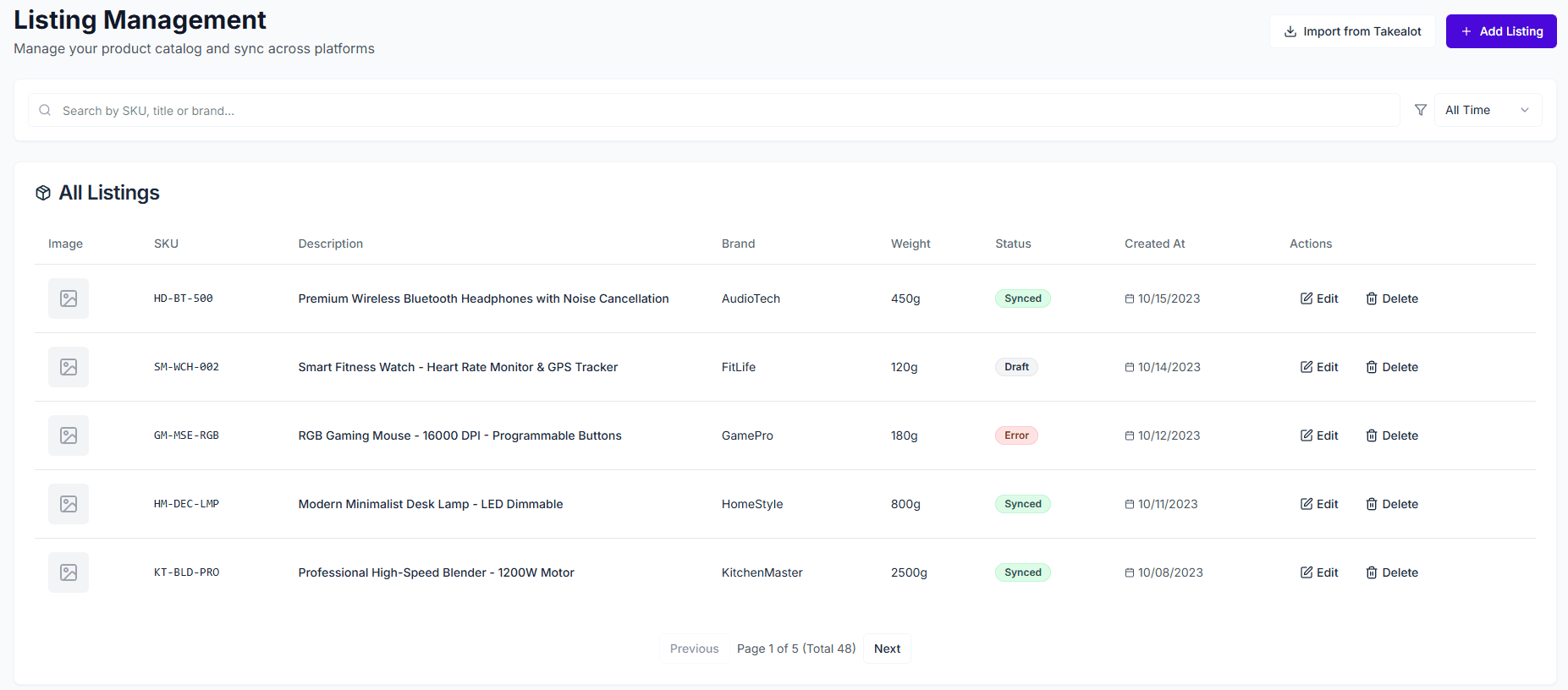
Listing Management acts as your centralized product database, helping you manage all product listings in one place. By importing existing listings from Takealot or manually creating new ones, you can easily maintain product information, track sync status, and lay the foundation for multi-channel sales.
Core Value
- Centralized Database: View and manage all products in one place, regardless of their publication status
- One-Click Import: Pull existing listings directly from connected Takealot stores without manual entry
- Status Tracking: Monitor listing sync status in real-time (Synced, Draft, Error, etc.)
- Quick Retrieval: Fast search and filtering by SKU, title, or brand
- Multi-Platform Sync: Easily export and publish listings to multiple sales channels (e.g., Takealot)
Quick Start
1. Import or Create Products
You can add products to the system in two ways:
- Import from Takealot: Click the “Import from Takealot” button in the top right corner. The system will automatically pull all listing data from your connected stores. This is the fastest way to initialize.
- Manual Creation: Click the “Add Listing” button to enter the product creation page.
2. Publish & Sync to Platforms
Once a product is created, you can export it to connected platforms:
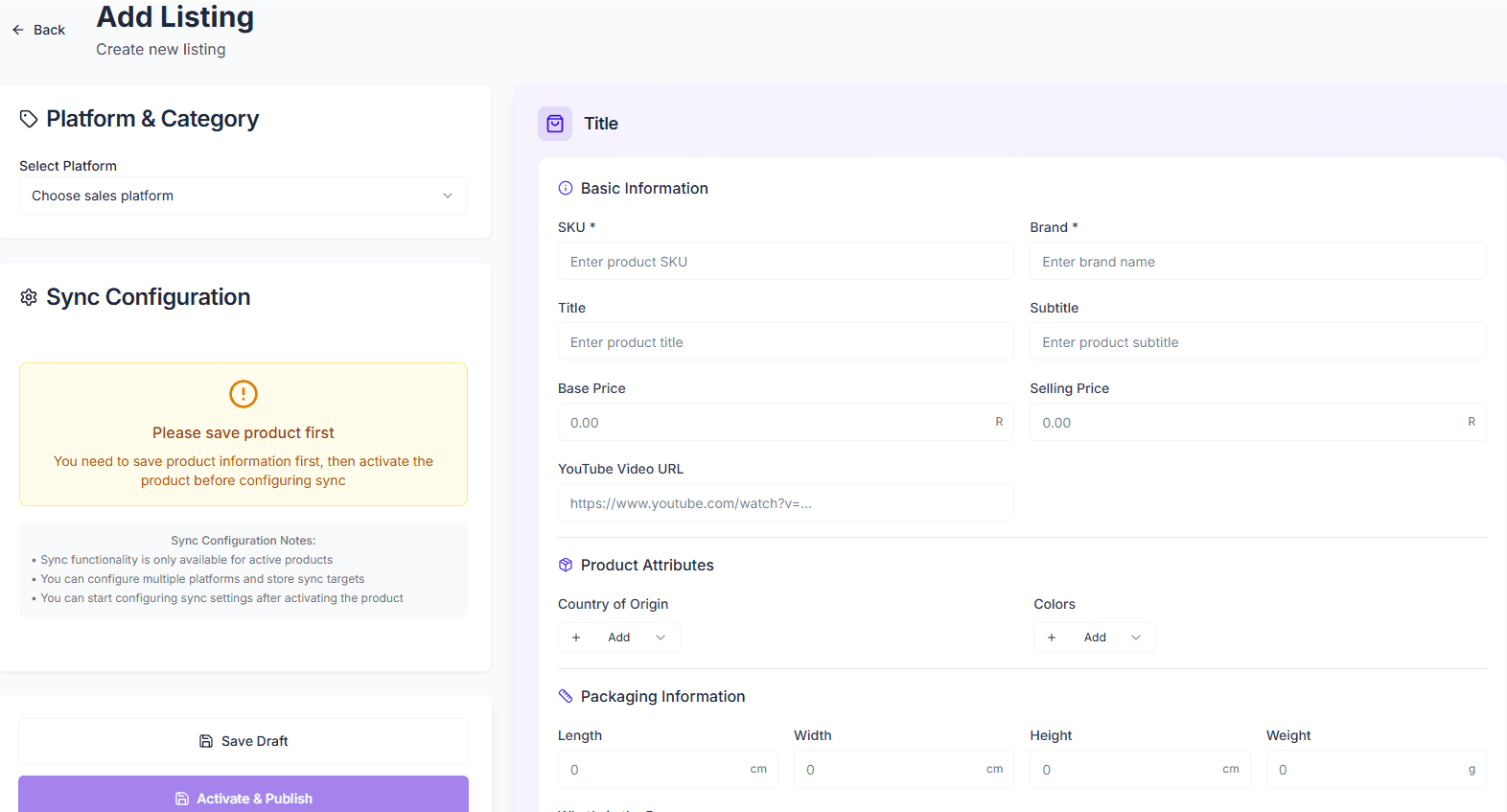
- Complete Information: Fill in essential product details (SKU, title, price, description, attributes, etc.).
- Configure Sync: In the Sync Configuration section, select your target platform (e.g., Takealot) and set specific sync rules.
- Activate & Publish: Click the “Activate & Publish” button. The system will validate the data and automatically push the product to the selected platform.
- View Results: After publishing, the product status will update to Synced, and you can view detailed logs in the sync history.
3. Manage Listings
In the listing table, you can view key information and perform actions:
- Image Preview: Quickly verify product images
- SKU & Description: Core product identifiers
- Brand & Weight: Basic attributes
- Status Indicators:
- Synced: Product successfully synced to target platform
- Draft: Saved locally only, not yet published
- Error: Issues occurred during sync, needs checking
4. Search & Filter
Use the top toolbar to quickly locate specific products:
- Search: Supports fuzzy search by SKU, product title, or brand name
- Date Filter: Filter the list by creation time (All Time, Today, This Week, This Month)
Edit & Delete
- Edit: Click the “Edit” button in the actions column to modify product details. You can re-sync after editing to update platform data.
- Delete: Click the “Delete” button to remove the product from the management list.
FAQ
Q: Why don’t I see all images after import?
A: The system attempts to fetch the main image. If the image format returned by the Takealot API is restricted or the link is invalid, a default placeholder may be shown. You can manually edit the listing to upload new images.
Q: Is bulk operation supported?
A: Batch import is currently supported.