Product Ads
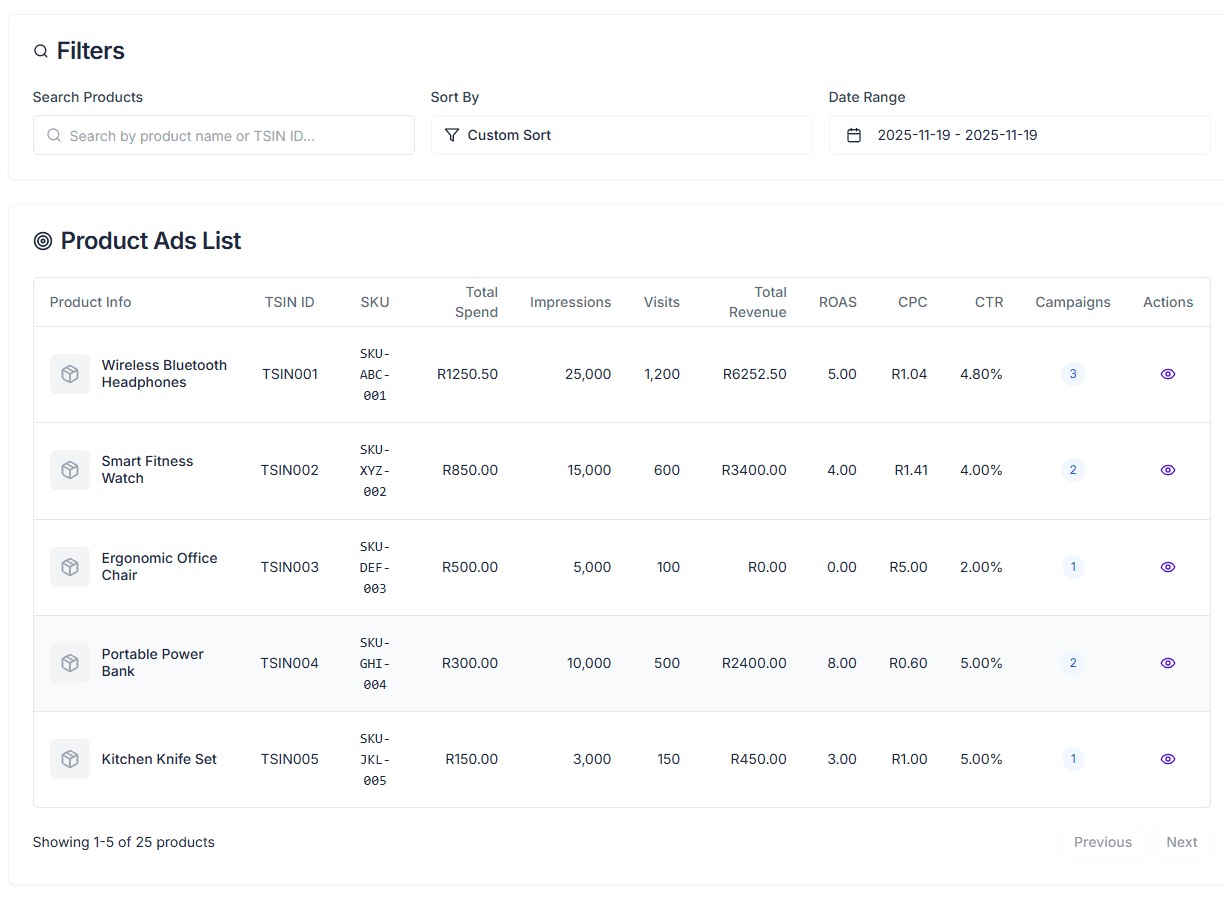
Product Ads provides a unique perspective: reviewing ad performance centered on SKUs.
In traditional ad management, a single product might be scattered across multiple ad campaigns (e.g., one Auto campaign, one Manual Exact Match, one Manual Broad Match). This makes it difficult to answer a simple question: “How much did this product spend in total, and how much did it earn?”
The Product Ads function is designed to solve this problem by aggregating data for the same product across all campaigns.
Why Need This View?
- Global Perspective: Eliminate blind spots and see the true ad profit and loss of individual products.
- Discover Omissions: Quickly find potential products that have no ad placement (Campaign Count = 0).
- Resource Allocation: Identify products that consume too much budget but have poor conversion.
Key Data Metrics
Each row in the list represents a product (SKU), and the data covers the sum of all ad campaigns the product participated in during the selected time period:
- Campaign Count: The number of ad campaigns this product is currently active in.
- Total Spend: Cumulative ad spend.
- Total Revenue: Cumulative sales revenue brought by ads.
- ROAS (ROI): The comprehensive return on investment for this product.
- Impressions & Visits: Cumulative exposure and visits.
- CPC & CTR: The average Cost Per Click and Click-Through Rate for this product.
Common Operations
-
Fill Gaps:
- Sort by Campaign Count in ascending order.
- Find products with a count of
0and evaluate whether to create new ad campaigns for them.
-
Survival of the Fittest:
- Sort by Total Spend in descending order.
- Check the ROAS of high-spend products. If ROAS is below the breakeven point, click on the product to view details, identify which specific campaign is “burning money,” and optimize it.
-
Jump to Details:
- Click on any product in the list to jump directly to its detail page and automatically switch to the Ad Analysis Tab to view more granular campaign attribution data.
Combined Use: It is recommended to first identify macro issues in the “Product Ads” page (e.g., a product is losing money overall), then click into the detail page and use the “Ads Analytics” function for micro-adjustments (e.g., pausing a specific inefficient Keyword).