Makro Auto Pricing
Makro Auto Pricing combines two features on one page:
- Brand protection watches your Makro listings for hijackers, Makro retail offers, and Buy Box ownership, and keeps a history of every change.
- Auto pricing follows the other sellers on the same listing and changes your Makro selling price automatically, always within the minimum and maximum price you set.
You can use either feature on its own or both on the same listing.
Before You Start
- Connect your Makro store first. See Connect Makro Store.
- Makro Auto Pricing is available on the Starter plan and above.
- Each listing with brand protection or auto pricing turned on uses 1 task from your organization’s quota. A listing with both turned on still uses 1. The Task quota card shows how many you have left.
Page Overview
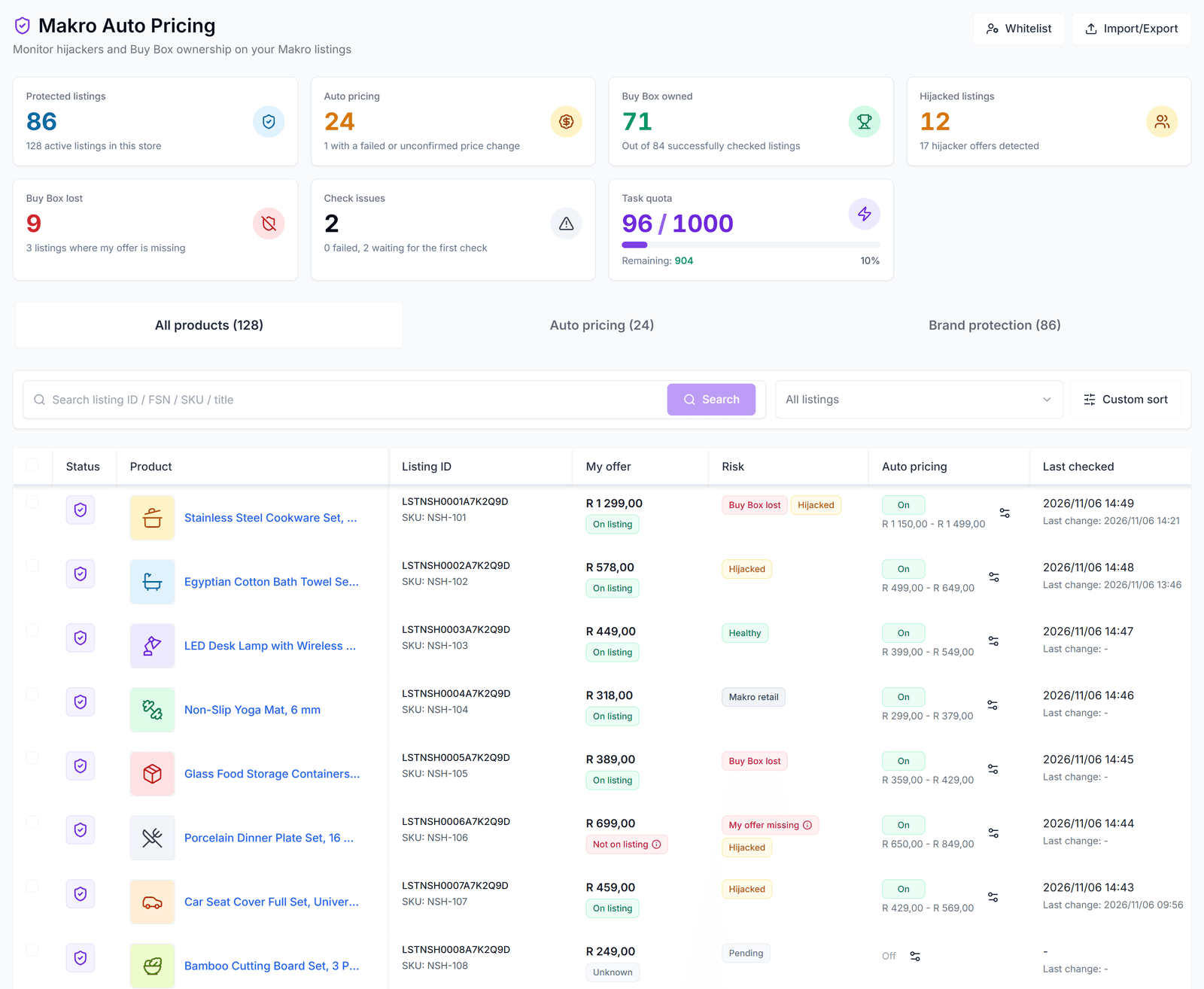
Go to Makro > Auto Pricing and select the store in the sidebar.
Summary cards
| Card | What it shows |
|---|---|
| Protected listings | Listings with brand protection on, out of all active listings in the store |
| Auto pricing | Listings with auto pricing on, and how many have a failed or unconfirmed price change |
| Buy Box owned | Listings where you hold the Buy Box, out of the listings checked successfully |
| Hijacked listings | Listings with at least one hijacker, and the total number of hijacker offers |
| Buy Box lost | Listings where another seller holds the Buy Box, and how many no longer show your offer |
| Check issues | Listings whose last check failed or that are waiting for their first check |
| Task quota | Tasks used and remaining for your organization |
Tabs
- All products: every active listing in the store. Turn brand protection and auto pricing on or off here.
- Auto pricing: listings with auto pricing on, with prices, the price range, the last decision, and the execution result.
- Brand protection: listings with brand protection on, with the Buy Box holder, the lowest price, and every seller on the listing.
Each tab has a search box (listing ID, FSN, SKU, or title), a filter, and Custom sort. Use Whitelist and Import/Export at the top right for store-wide settings.
Brand Protection
Turn on brand protection
- Open the All products tab.
- Click the shield icon in the Status column to turn brand protection on or off for one listing.
- To change many listings at once, tick the rows and click Turn on brand protection or Turn off brand protection. Up to 1,000 listings can be updated at a time.
Protected listings are checked every 30 minutes. The first check sets the baseline, so changes start to appear from the second check.
Read the results
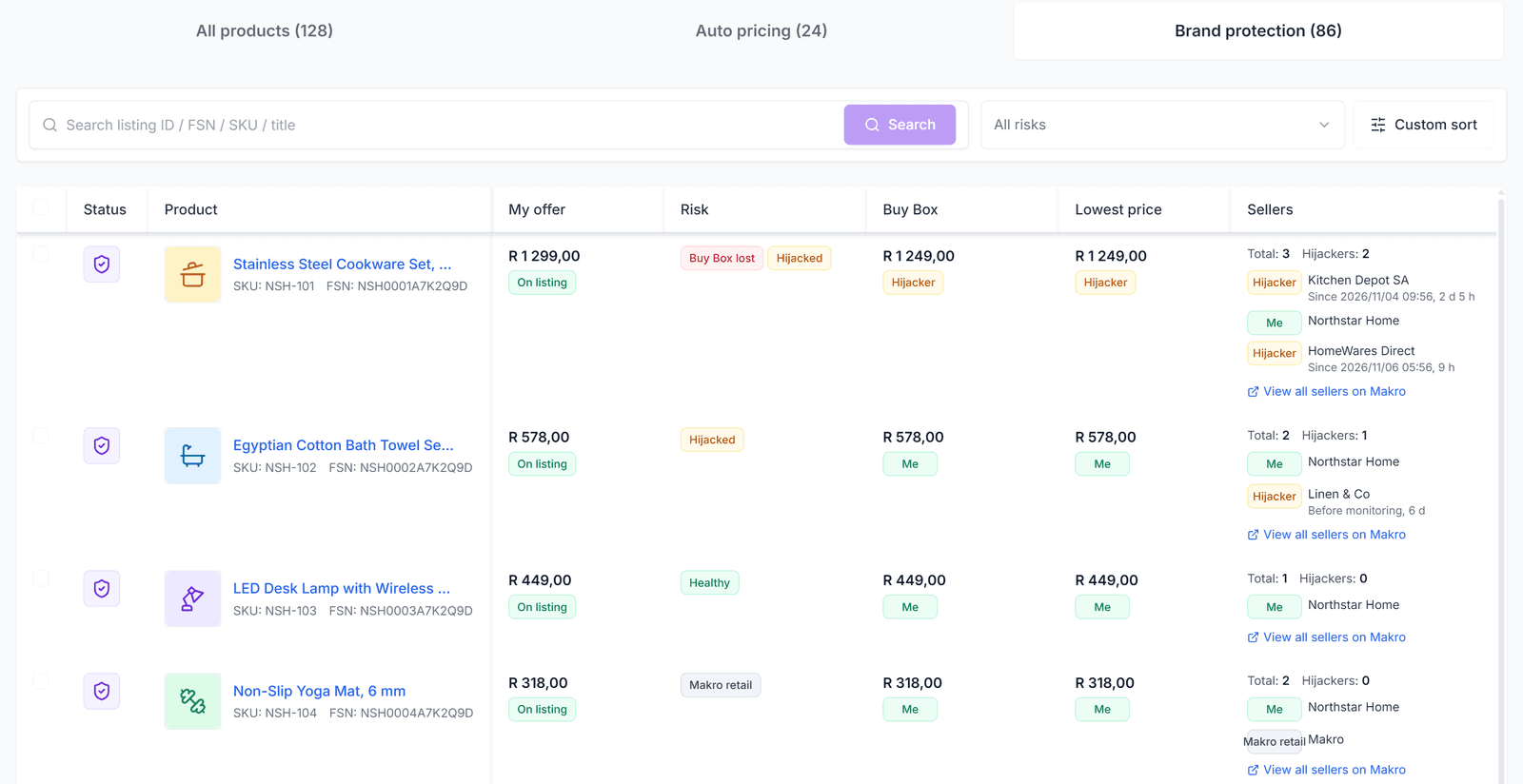
- My offer shows your current price and whether your offer is on the listing.
- Buy Box and Lowest price show the price and who holds it: Me, Hijacker, Makro retail, or Whitelist.
- Sellers lists every seller on the listing, with the time each hijacker was first seen. Click View all sellers on Makro to open the Makro seller page.
- Notes lets your team leave a note on the listing.
The Risk column summarizes what needs attention:
| Label | Meaning |
|---|---|
| Healthy | No risk found in the last check |
| Hijacked | At least one other seller is selling on your listing |
| Buy Box lost | Your offer is on the listing, but another seller holds the Buy Box |
| My offer missing | Makro is not showing your offer on this listing |
| Makro retail | Makro is selling the same product itself |
| No buyable offer | Nobody can currently buy this listing |
| Collection failed | The last check could not read the listing; the next check retries |
| Pending | Waiting for the first check |
Use the filter to show only listings with a specific risk, for example Buy Box held by a third party or Has hijackers.
My offer missing is most often caused by zero stock: Makro hides offers that have no stock. Check the listing’s inventory in Makro Seller Hub.
Listing history
Click the history icon in the History column to open the Listing history panel.
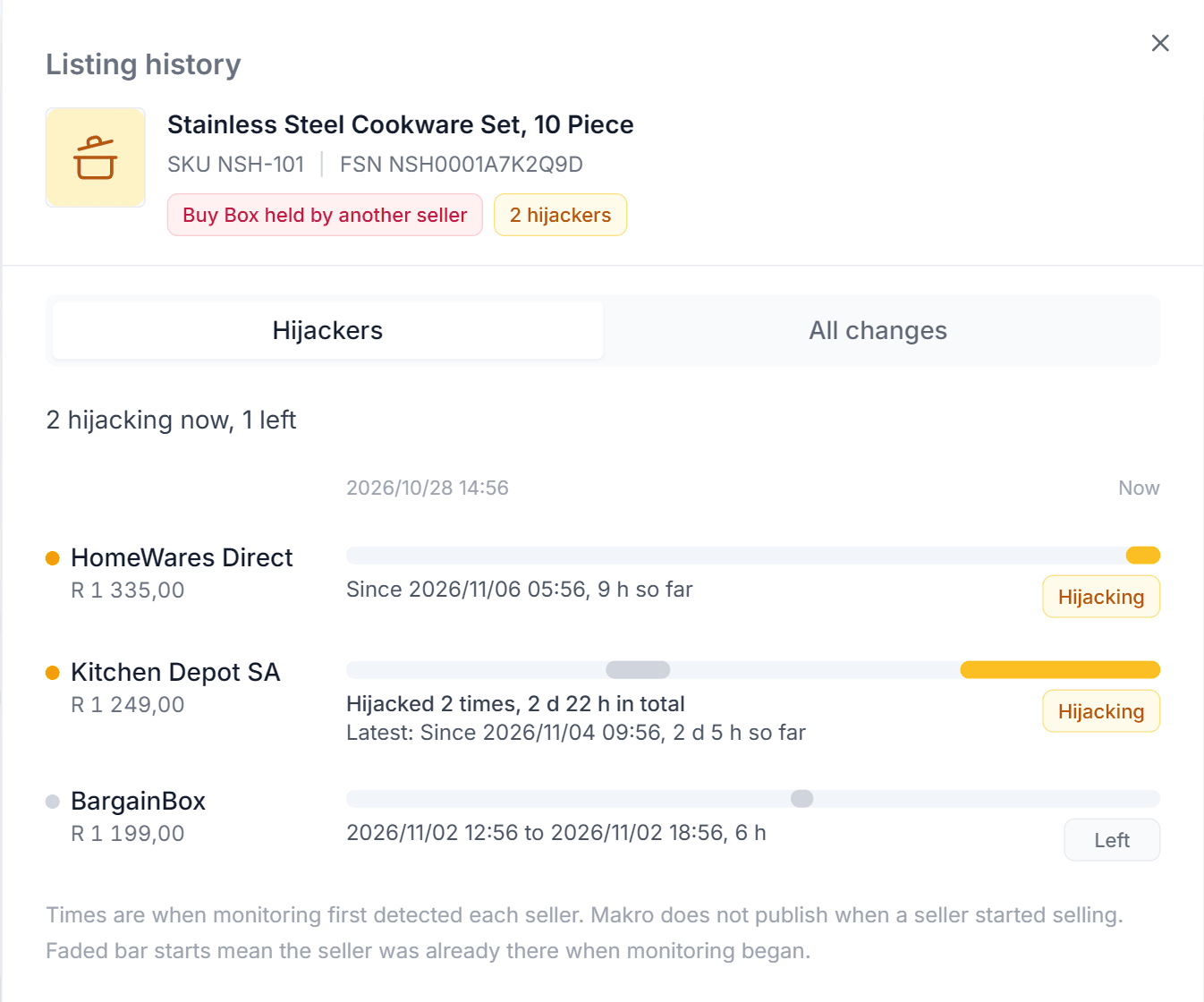
The Hijackers tab shows a timeline of every seller who has hijacked the listing: when they arrived, when they left, how long they stayed, and how many times they came back.
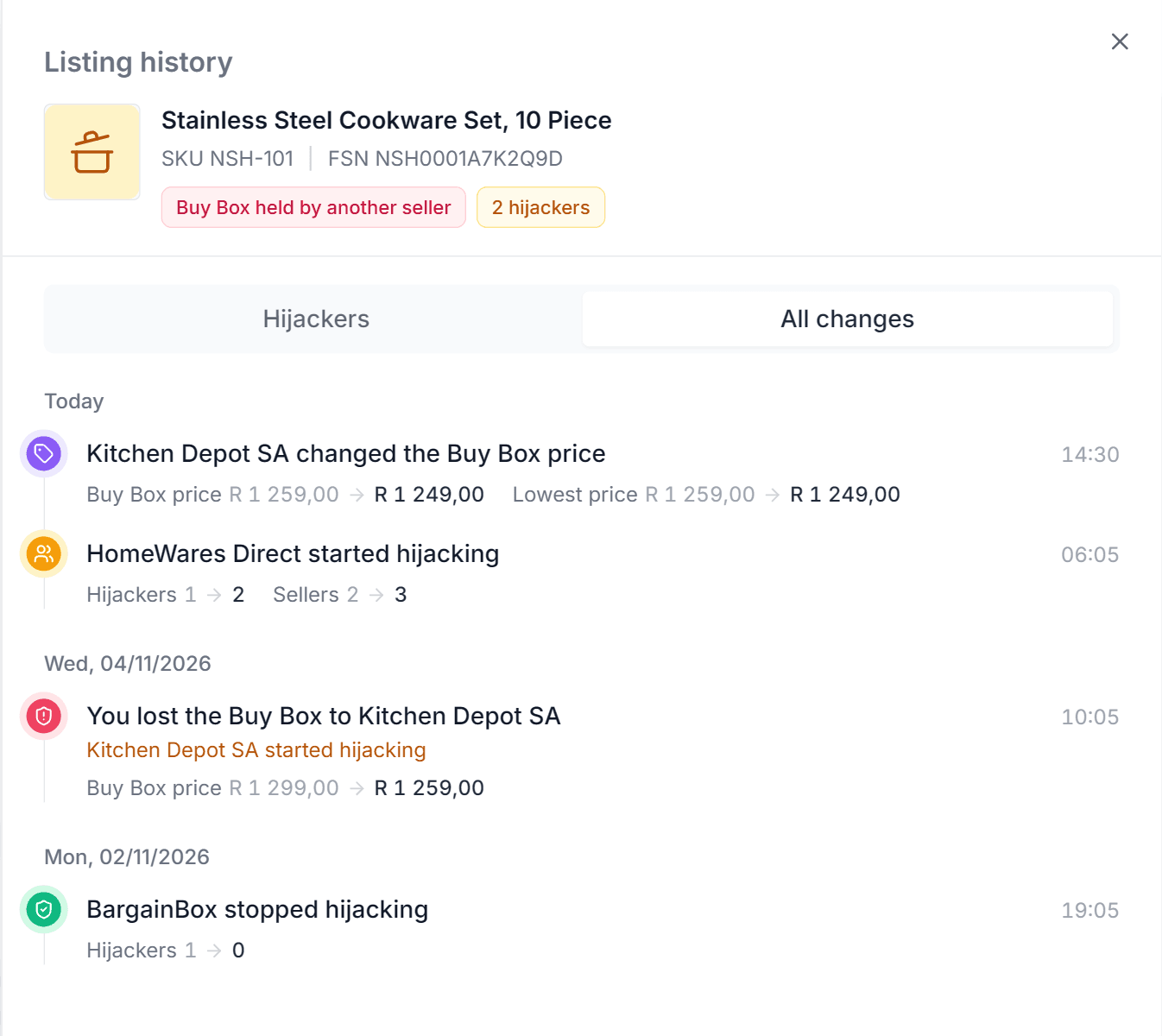
The All changes tab lists every change in plain sentences, such as a hijacker joining, a Buy Box change, or a seller changing the Buy Box price, together with the price movements.
Times are when monitoring first detected each seller. Makro does not publish when a seller started selling. If a seller was already there when monitoring began, the timeline shows Before monitoring.
Auto Pricing
Set up auto pricing
For one listing, click the settings icon in the Auto pricing column on the All products tab, or click Edit on the Auto pricing tab. For many listings, tick the rows and click Set auto pricing: the same settings are applied to every selected listing.
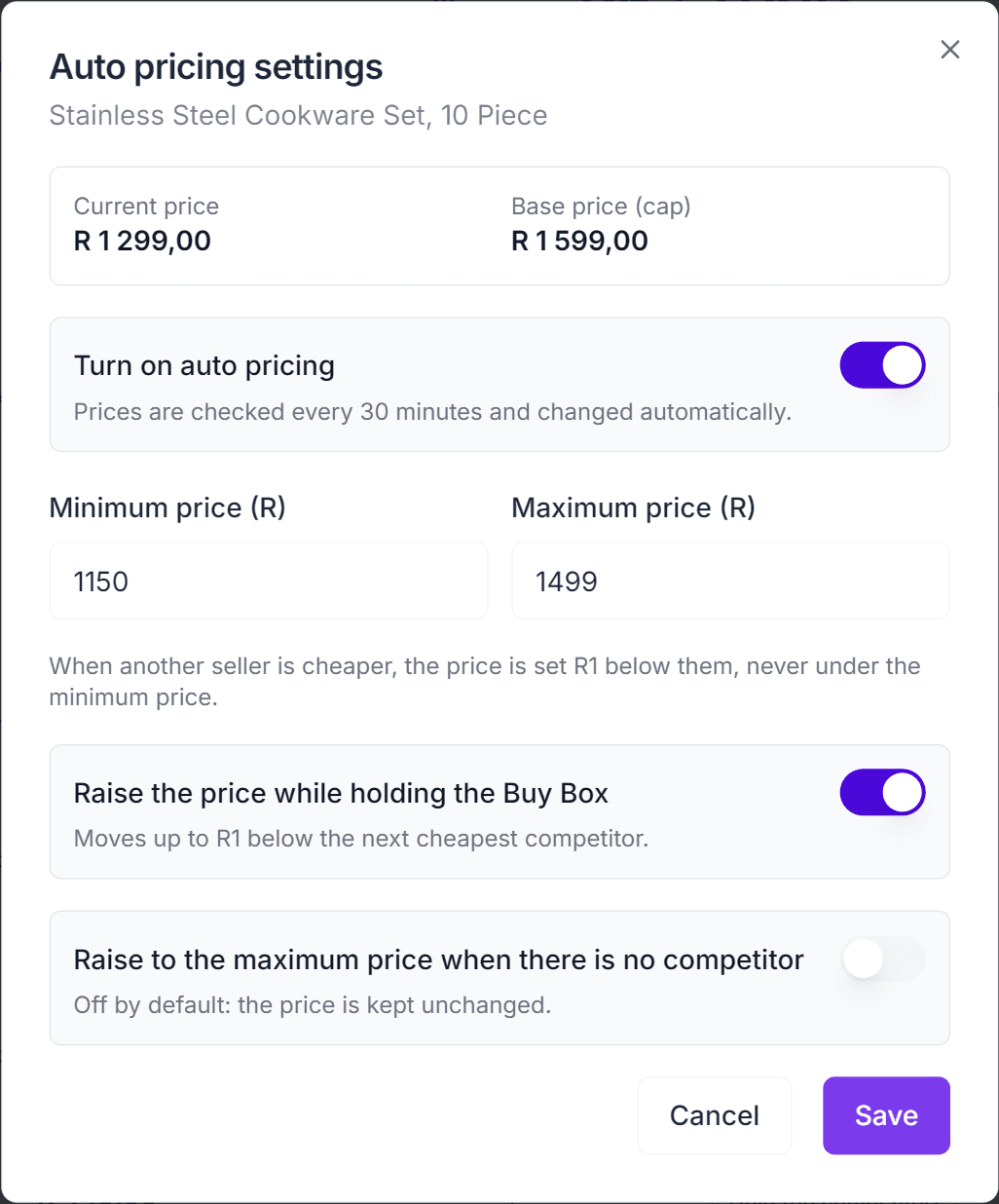
| Setting | Description |
|---|---|
| Turn on auto pricing | Starts pricing from the next 30-minute cycle |
| Minimum price (R) | Required. The price never goes below this |
| Maximum price (R) | Optional. The price never goes above this. It cannot exceed the listing’s Base Price |
| Raise the price while holding the Buy Box | On by default. Lets the price move up to R1 below the next cheapest competitor |
| Raise to the maximum price when there is no competitor | Off by default. When on, a listing with no competitor is raised to the maximum price. Requires a maximum price |
The dialog also shows the Current price and the Base price (cap). Prices are whole rand amounts.
The minimum price is your floor. Set it at a level you are willing to sell at, because auto pricing can move the price down to it when a competitor is cheaper.
How the price is calculated
Auto pricing compares your offer with the other sellers on the same listing. These sellers are not treated as competitors:
- You
- Sellers on the store whitelist
- Your organization’s other Makro stores
- Offers that are currently unavailable
Makro retail is treated as a normal competitor. Only the listing price is compared; delivery fees are not included.
Every 30 minutes, each listing gets one decision:
| Situation | What happens |
|---|---|
| You do not hold the Buy Box, and a competitor’s price is the same as or lower than yours | The price is set R1 below the cheapest competitor |
| You do not hold the Buy Box, but you are already the cheapest | The price stays the same |
| You hold the Buy Box, and raising is allowed | The price moves up to R1 below the cheapest competitor, if that is higher than now |
| You hold the Buy Box, and raising is off | The price stays the same |
| No competitor | The price stays the same, or goes to the maximum price if you turned that option on |
While you hold the Buy Box, auto pricing only raises the price and never lowers it. The result is always kept between your minimum price and the lower of your maximum price and the Base Price. If a competitor is below your minimum price, your price goes down to the minimum and stays there.
Auto pricing skips a listing, and changes nothing, when the check failed, when Makro returned an incomplete seller list, or when your offer is not on the listing.
Track decisions and results
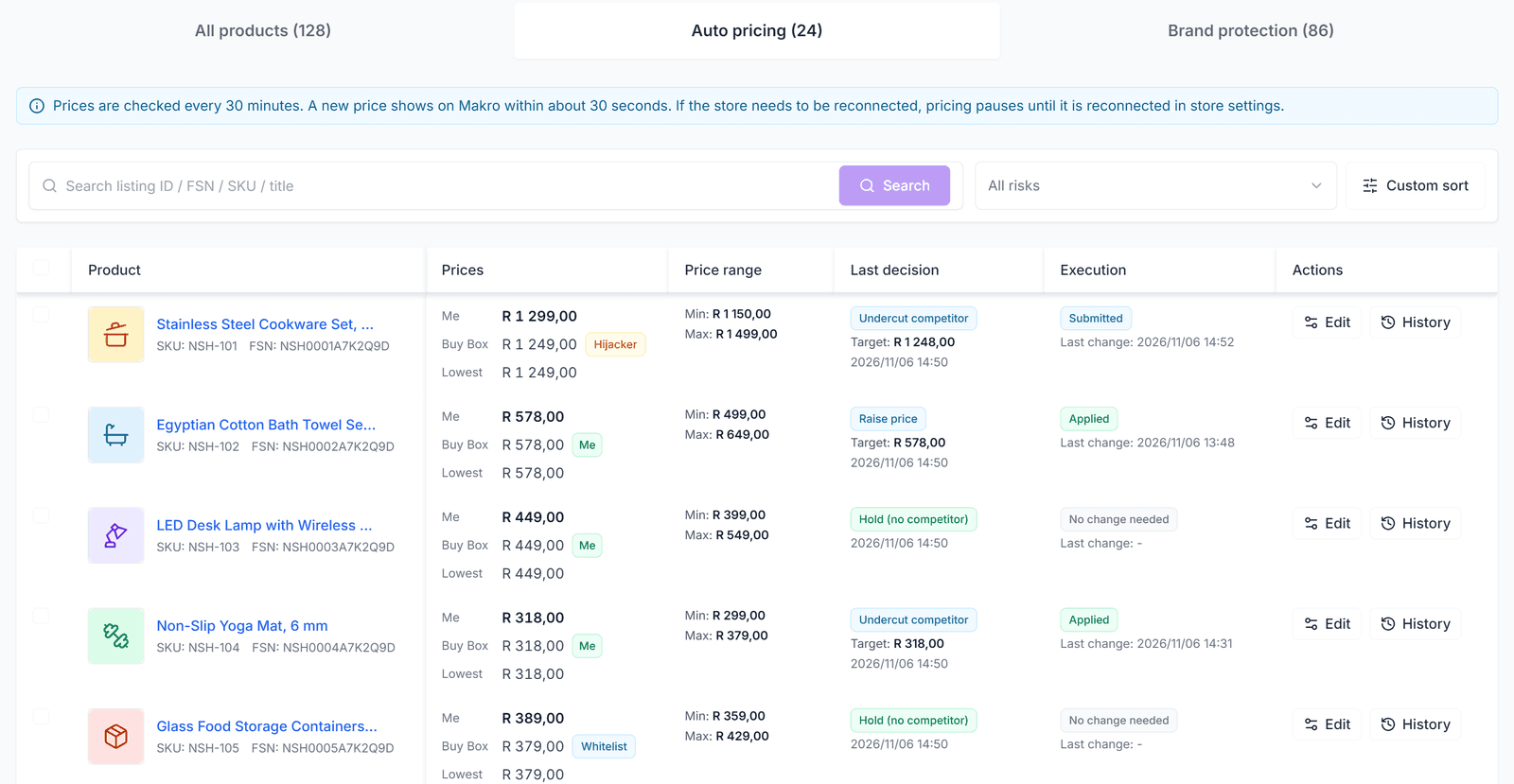
On the Auto pricing tab:
- Prices shows your price, the Buy Box price, and the lowest price.
- Price range shows your minimum and maximum price.
- Last decision shows what auto pricing decided in the last cycle, such as Undercut competitor, Raise price, Hold (winning), or Skipped: my offer missing, and the target price.
- Execution shows what happened to the price change:
| Status | Meaning |
|---|---|
| Applied | The new price was accepted by Makro |
| Submitted | The new price was sent and is waiting for confirmation |
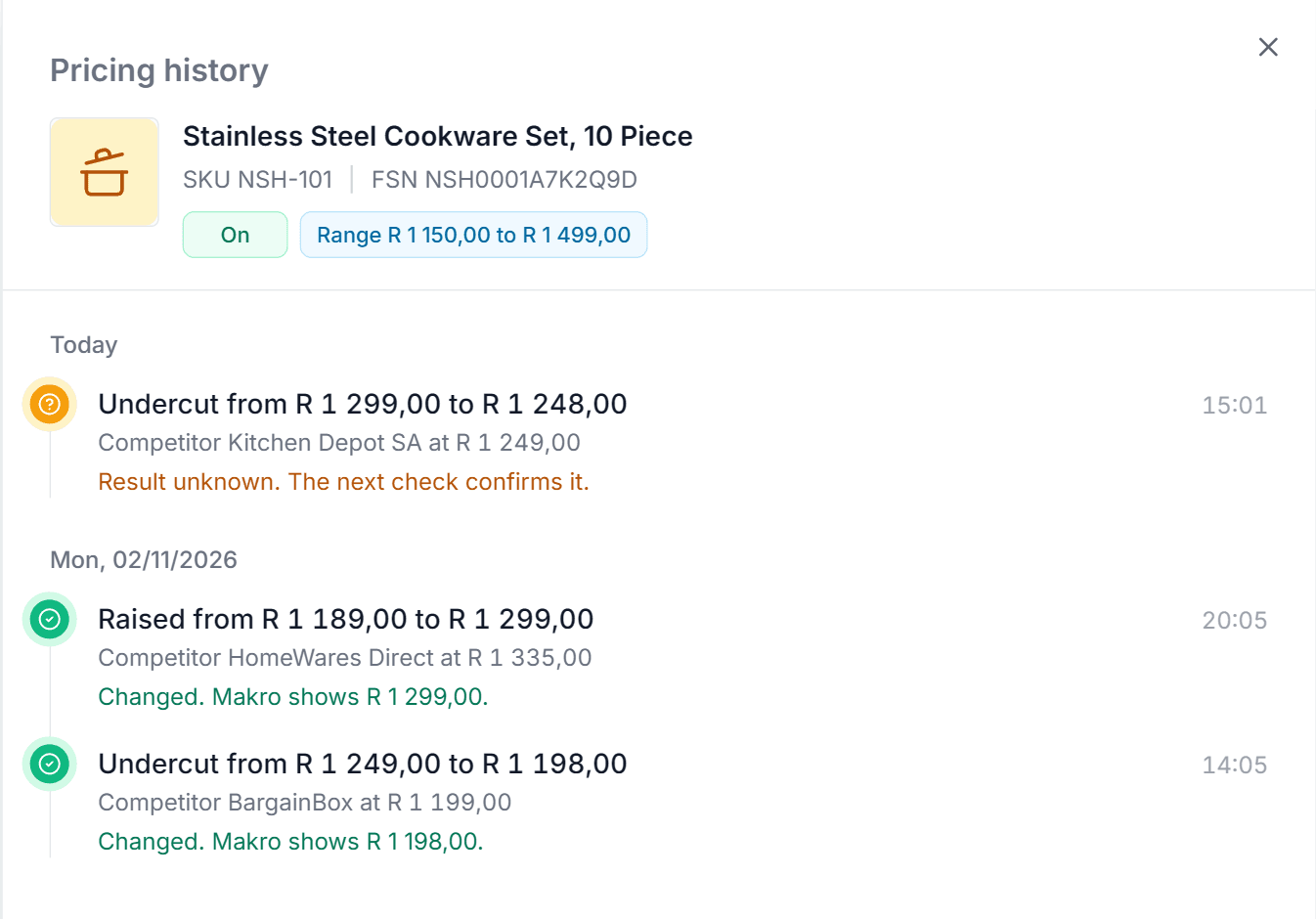
| Result unknown | The request did not return a clear result; the next check confirms it |
| Failed | The price change was rejected or could not be sent |
| Skipped | Nothing was changed, for example because your offer is not on the listing or the store needs to be reconnected |
| No change needed | The decision was to keep the current price |
A new price usually shows on Makro within about 30 seconds. The next check compares the price Makro shows with the price that was sent.
Pricing history
Click History on the Auto pricing tab to see every price change for the listing: the old and new price, the competitor it reacted to, and whether Makro shows the new price.
Safety checks
- Right before a price is sent, the settings, the Base Price, and the whitelist are checked again. If any of them changed, the change is cancelled and the next cycle recalculates with the new values.
- If you turn auto pricing off while a change is waiting to be sent, it is cancelled.
- If Makro asks you to reconnect the store, auto pricing pauses until you reconnect it in store settings.
- A request that times out is not resent automatically. The next check confirms whether the price changed.
Whitelist
Click Whitelist to open Whitelist settings. Sellers on the whitelist are not counted as hijackers and are ignored by auto pricing. Use it for your own other accounts or for authorized resellers.
- Store whitelist (seller IDs): one Makro seller ID per line, up to 200.
- Other Makro stores in your organization are always whitelisted. You do not need to add them.
- Makro retail seller IDs are shown for reference. Makro retail is labelled separately and is priced as a competitor. If you do not want to compete with Makro retail, add its seller ID to the store whitelist.
Changes take effect from the next check.
Import and Export
Click Import/Export to manage many listings with a file.
- Export current view downloads the listings in the current tab, search, and filter as CSV or Excel.
- CSV template and Excel template download an empty file with the correct columns.
- Import matches rows by listing ID or SKU, up to 5,000 rows per file.
| Column | Description |
|---|---|
listing_id / sku | Identifies the listing |
enabled | Brand protection on or off |
notes | Note shown on the Brand protection tab |
auto_pricing_enabled | Auto pricing on or off |
min_price / max_price | Price range in whole rand |
enable_price_increase | Raise the price while holding the Buy Box |
raise_when_no_competitor | Raise to the maximum price when there is no competitor |
Blank auto pricing cells leave the current setting unchanged. The import summary shows how many listings were created, updated, or failed.
FAQ
Why hasn’t my price changed?
Check the Last decision column. Common reasons:
- No competitor is cheaper than you, or you are already the cheapest.
- You hold the Buy Box and Raise the price while holding the Buy Box is off.
- Your price is already at the minimum price.
- The listing was skipped because the check failed, the seller list was incomplete, or your offer is not on the listing.
- The store needs to be reconnected in store settings.
Do I need brand protection to use auto pricing?
No. Auto pricing checks the listing every 30 minutes on its own. Turning on brand protection as well adds the listing to the Brand protection tab and its history, without using an extra task.
Why can’t I set a maximum price above the Base Price?
Auto pricing never sets a price above the listing’s Base Price. To allow higher prices, update the Base Price in Makro Seller Hub first.
Is Makro retail counted as a hijacker?
No. Makro retail is labelled Makro retail and is not counted as a hijacker, but auto pricing competes with it like any other seller unless you add its seller ID to the whitelist.
What does “Before monitoring” mean in the hijacker timeline?
The seller was already on the listing when monitoring started, so the real start time is unknown. The duration shown is the minimum time they have been there.