WooCommerce Order Analysis
WooCommerce Order Analysis helps you review standalone-store performance across revenue, order count, customers, average order value, refunds, and trends. Use it for daily checks, weekly or monthly reporting, and understanding whether campaigns or operational changes are creating real order growth.

Core Metrics
- Total Revenue: revenue from valid orders in the selected date range.
- Total Orders: number of valid orders.
- Average Order Value: total revenue divided by order count.
- Total Customers: customers who placed valid orders.
- Refund amount and refund rate: after-sales risk and order quality indicators.
- Product count: number of synced WooCommerce products.
⚠️
Revenuealot WooCommerce metrics count only processing and completed orders. Pending, failed, cancelled, refunded, and draft orders are synced for troubleshooting but excluded from revenue, order count, units sold, and average order value.
Trend Analysis
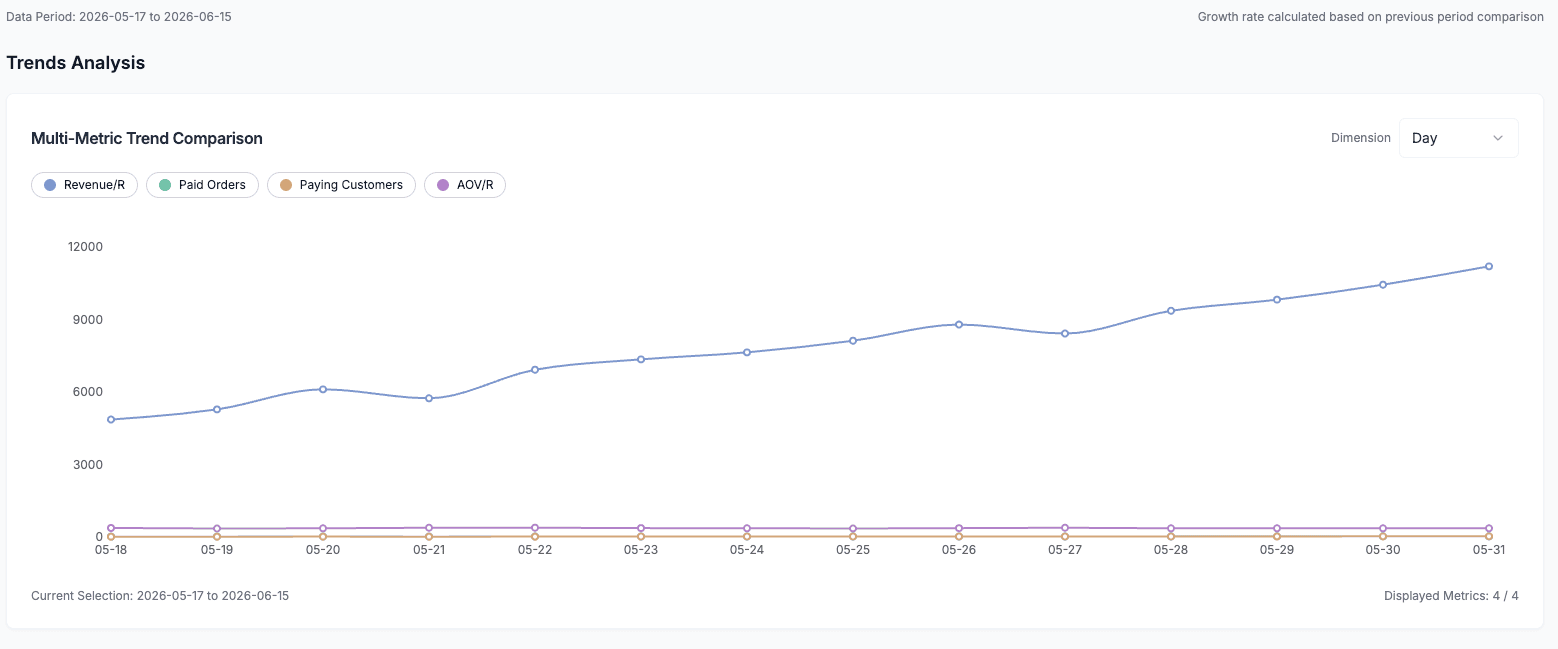
The trend chart shows revenue, orders, customers, and average order value by day, week, or month. Use it to spot campaign impact, seasonality, abnormal drops, and recovery patterns.
Common Workflow
- Open WooCommerce Store Metrics.
- Select the WooCommerce store you want to analyze.
- Set a date range, such as the last 7 days, last 30 days, or a custom range.
- Switch trend aggregation by day, week, or month.
- Compare revenue, order count, customers, and average order value to understand whether growth comes from more orders or higher basket size.
How to Read It
- Revenue grows but order count is flat: average order value is likely improving; check bundles or high-value products.
- Order count grows but average order value drops: a discount campaign may be driving volume; review margin and refund rate.
- Refund rate rises: check recent product, logistics, payment, or support issues.
- Trend has a sudden gap: check the store card and sync logs to confirm order sync is healthy.