WooCommerce Product Analysis
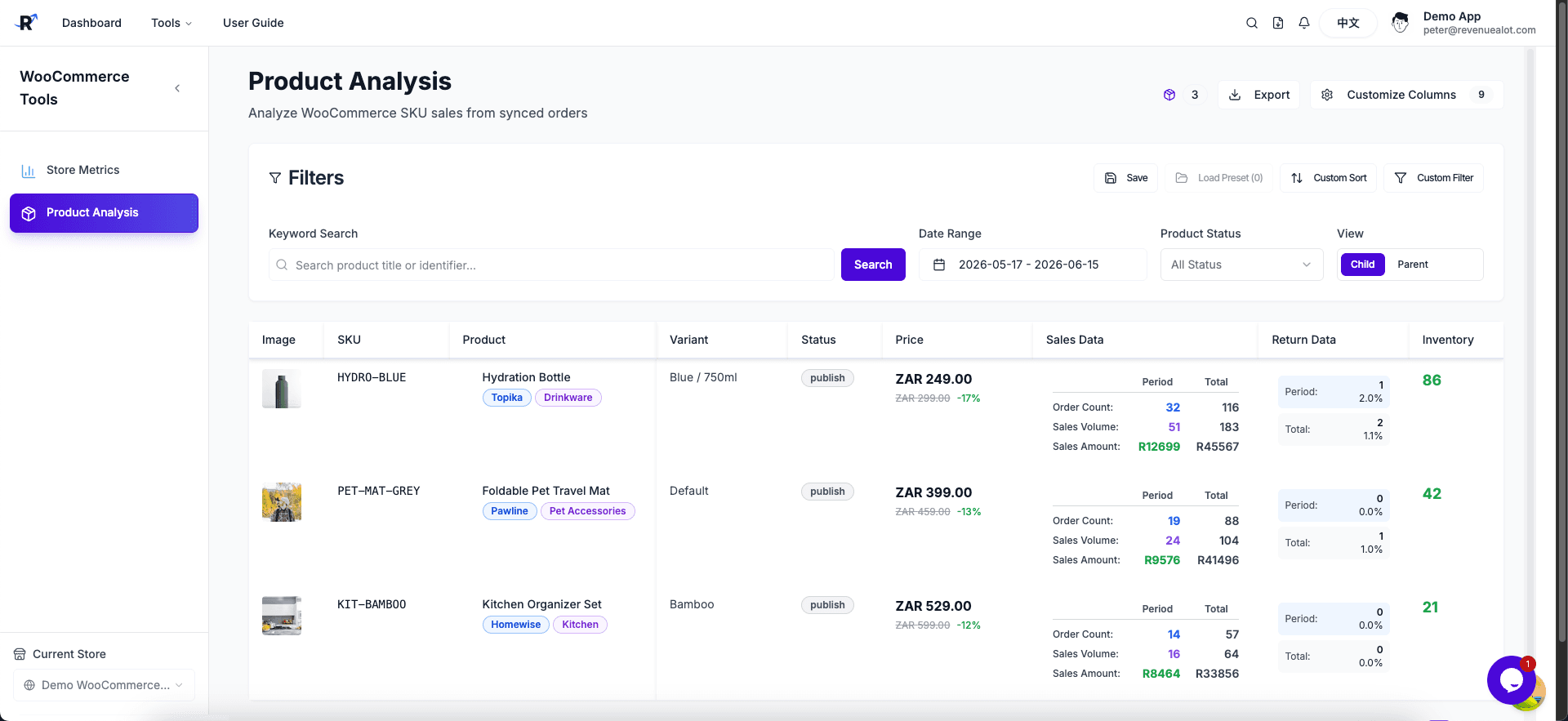
WooCommerce Product Analysis helps you review standalone-store product and variant performance. It brings WooCommerce product snapshots, inventory, order lines, and refund data into one table so you can quickly see which SKUs drive revenue and which products need replenishment, repricing, or cleanup.
What to Review
- SKU and variant performance: Review units sold, order count, and revenue by product, variant, and SKU.
- Inventory status: Check current inventory and identify out-of-stock or low-stock products.
- Product status: Filter by WooCommerce statuses such as
publishordraft. - Refund performance: Review refunded quantity, refunded amount, and refund rate to spot product-level after-sales risk.
- Date-range analysis: Change the date range to update period sales and revenue.
Data Rules
Product sales and revenue count only WooCommerce orders in processing and completed status. Pending, failed, cancelled, refunded, and draft orders are synced for troubleshooting but excluded from product sales and revenue.
Revenuealot attributes sales by WooCommerce variation ID first, then simple product ID, and only falls back to SKU when there is a single safe match. This prevents duplicate SKUs, empty SKUs, and parent-child SKU reuse from duplicating sales across variants.
Common Workflow
- Open WooCommerce Product Analysis.
- Select the WooCommerce store you want to analyze.
- Set the date range and review period sales, revenue, and refunds.
- Use status filters, search, and sorting to locate target SKUs.
- Combine inventory and sales data to decide replenishment, promotion, or delisting actions.
How to Read It
- High revenue but high refund rate: check product quality, images, descriptions, and packaging.
- Stable sales but low inventory: prioritize replenishment.
- No recent sales and high inventory: consider discounts, bundles, or stopping procurement.
- Duplicate SKUs: clean them up in WooCommerce Admin to reduce future reporting ambiguity.